64 slides extracted.
Slide 1 — 0:04 (watch)
 | Hello, my name is Xiao, and I am a GPU software engineer. |
Slide 2 — 0:16 (watch)
 | Today, I will guide you through an exploration of Metal tensors and demonstrate how to write optimized custom machine learning kernels using tensor operations. |
Slide 3 — 0:34 (watch)
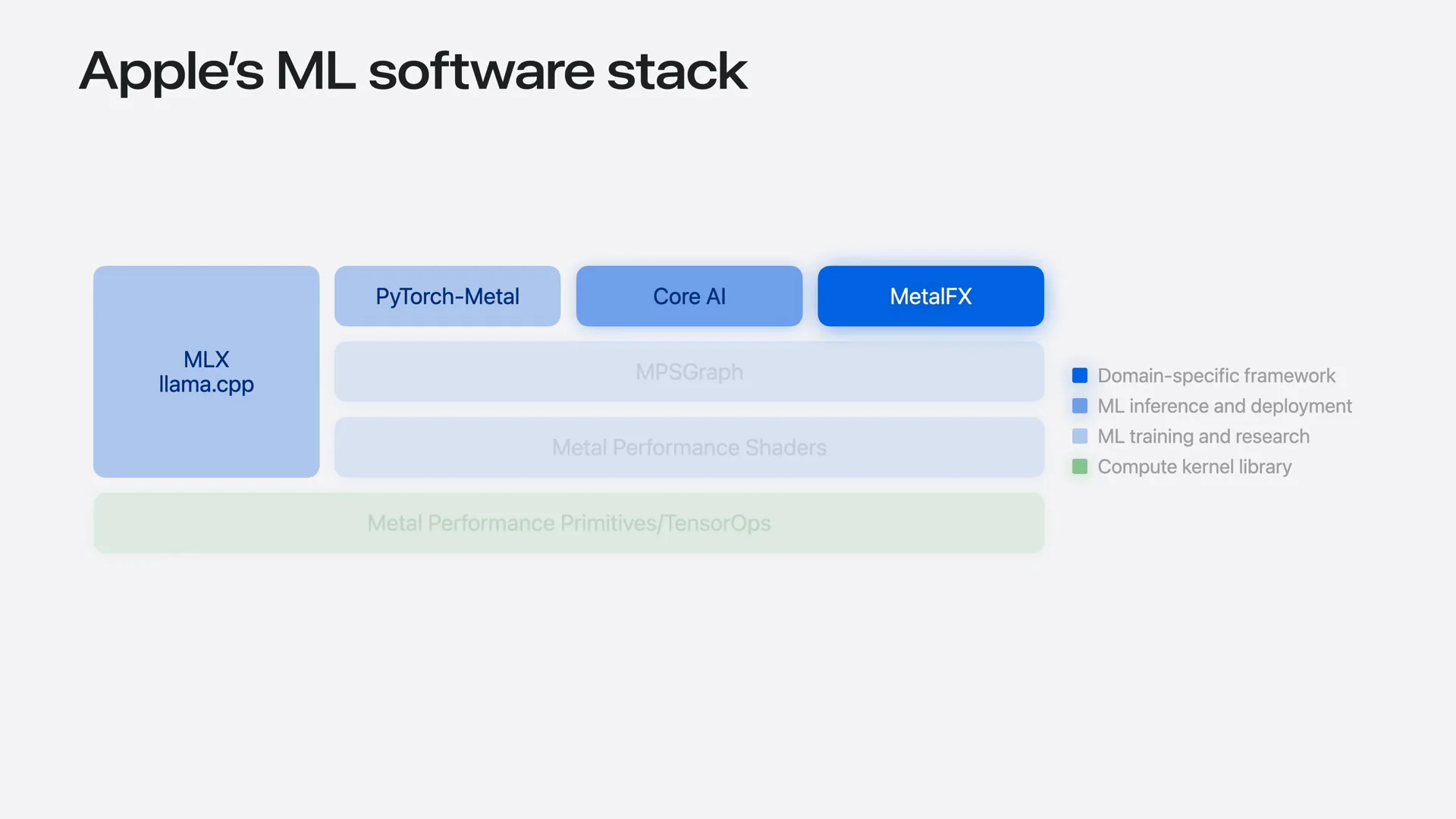 | Apple platforms offer robust support for running machine learning models across all layers of the software stack. High-level frameworks such as Core AI and MLX simplify model deployment with minimal code. In contrast, lower-level APIs like Metal Performance Shaders grant access to high-performance Metal kernels. All these layers leverage the low-level acceleration provided by Metal Performance Primitives and the Tensor Ops library. |
Slide 4 — 0:52 (watch)
 | There are several reasons to work at the Metal level. |
Slide 5 — 1:00 (watch)
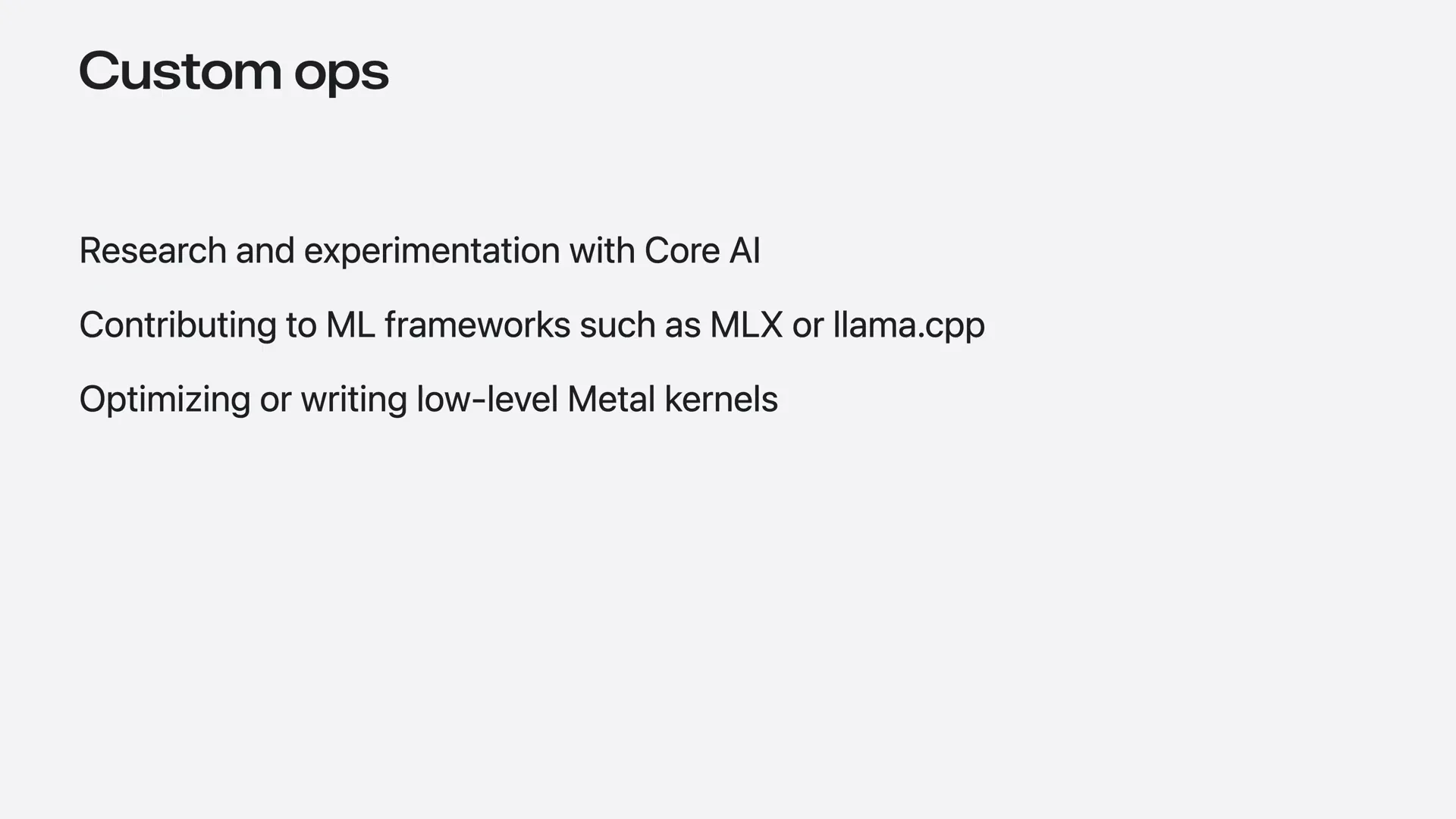
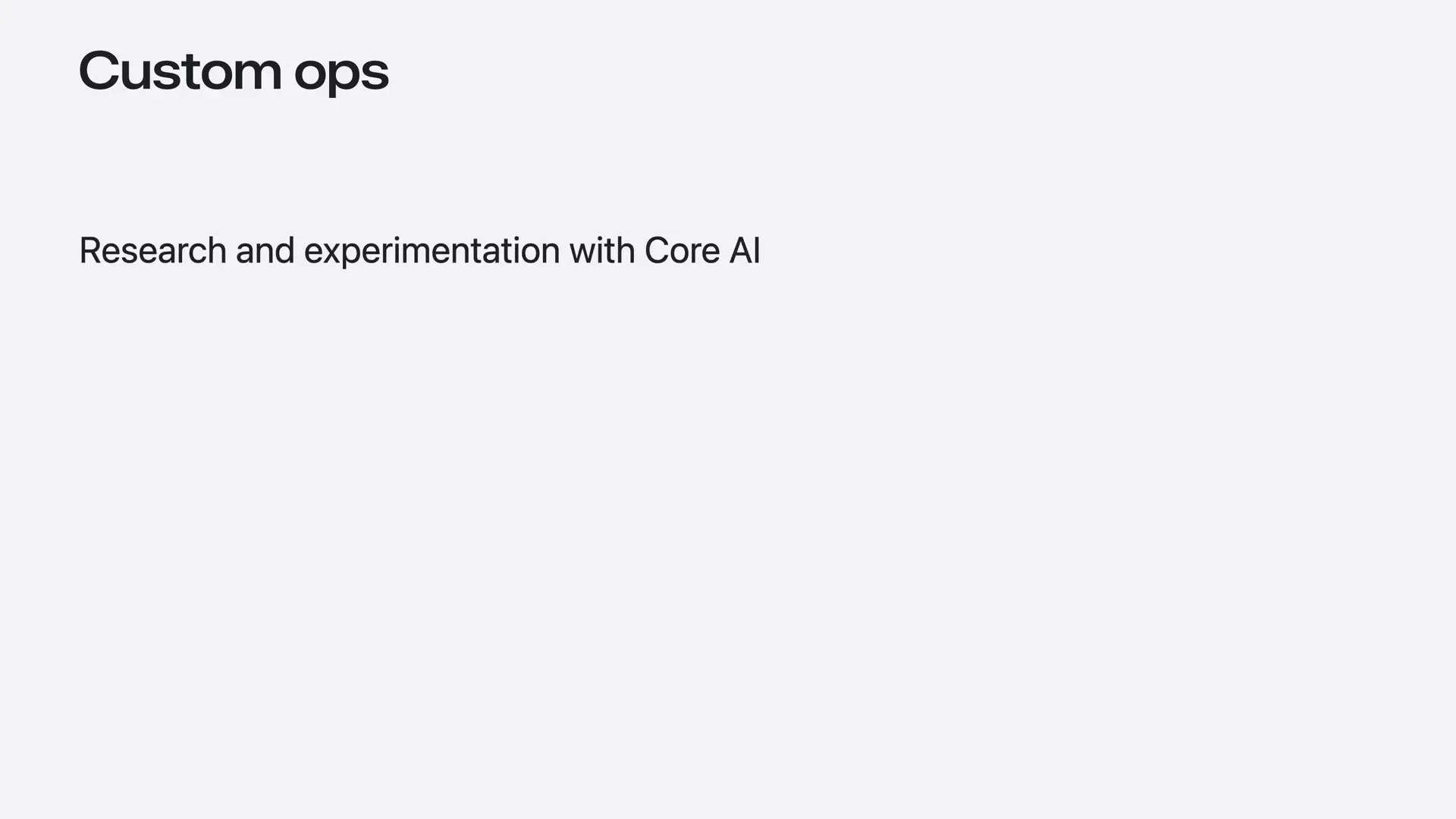 | Machine learning research evolves rapidly, so you may want to implement custom operations that integrate with high-level frameworks like Core AI. Additionally, writing Metal kernels may be necessary if you are contributing to an ML framework such as MLX or llama.cpp. |
Slide 6 — 1:14 (watch)
 | If you are working on a Metal-based application, the easiest way to get started is by using the tensor ops library. |
Slide 7 — 1:22 (watch)
 | Tensor Ops is a Metal shading language API that accelerates tensor operations on the GPU, including matrix multiplication and convolution. |
Slide 8 — 1:38 (watch)
 | It automatically utilizes any available hardware acceleration across all Apple Silicon GPU generations, eliminating concerns about differences between hardware generations. Specifically, it fully leverages the Neural Accelerator in the M5 chip family. |
Slide 9 — 1:56 (watch)
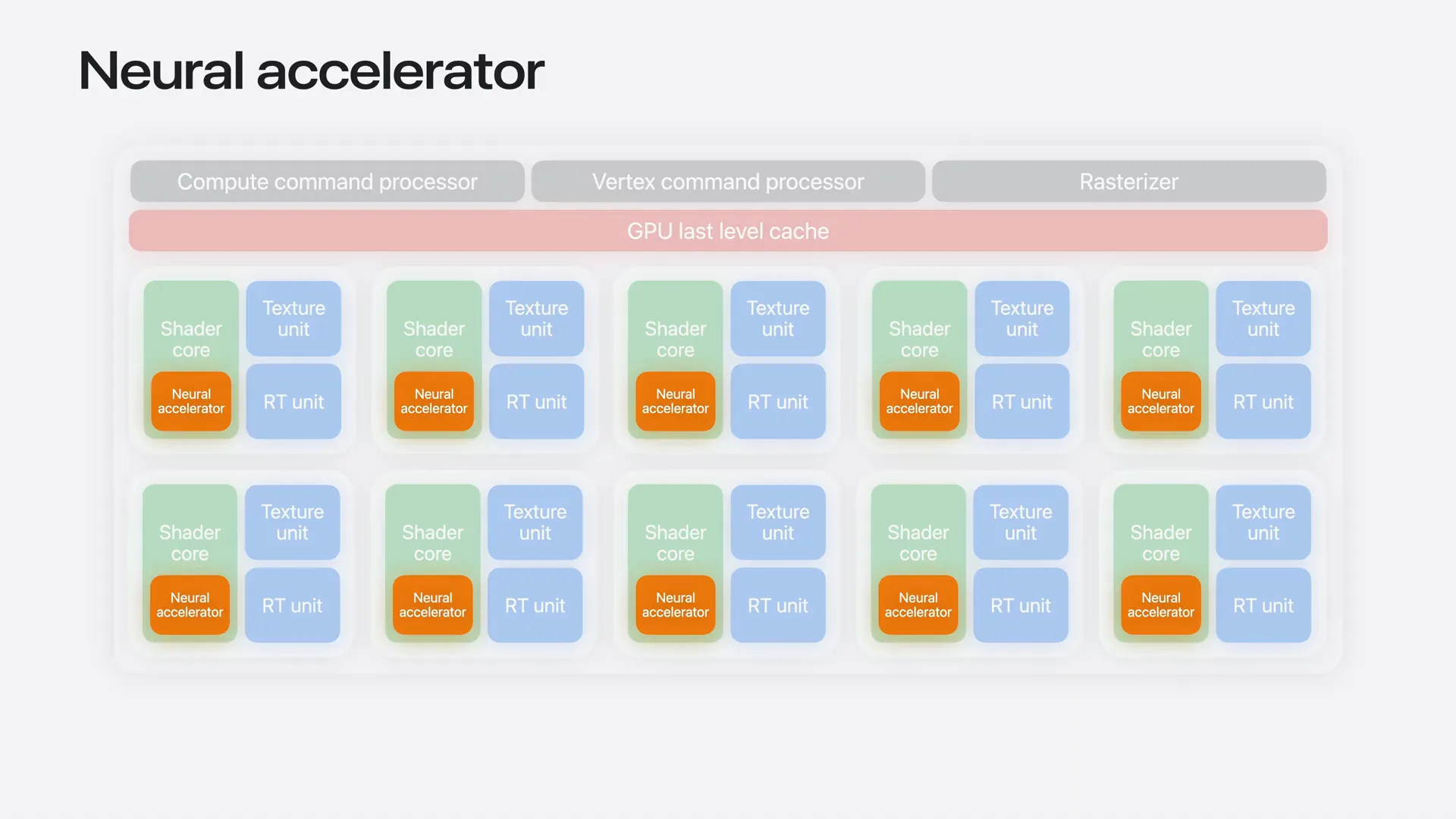 | The Neural Accelerator is a new hardware block in the M5 chip, located directly within each shader core. It operates alongside the other GPU pipelines and is specifically designed to accelerate dense compute-bound tasks, such as the pre-fill stage of a large language model (LLM). |
Slide 10 — 2:06 (watch)
 | You can refer to the related sessions to learn the fundamentals of getting started with tensor operations. |
Slide 11 — 2:12 (watch)
 | In this session, I will build on those basics by discussing best practices for working with quantizer data. |
Slide 12 — 2:22 (watch)
 | I will show you how to build advanced custom operations, such as flash attention. |
Slide 13 — 2:26 (watch)
 | Let's dive into the first topic: working with quantizer data. |
Slide 14 — 2:32 (watch)
 | State-of-the-art machine learning models are becoming larger. |
Slide 15 — 2:42 (watch)
 | The inference stage is typically limited by memory bandwidth, making weight compression necessary to fit models into memory and to conserve memory bandwidth. |
Slide 16 — 2:52 (watch)
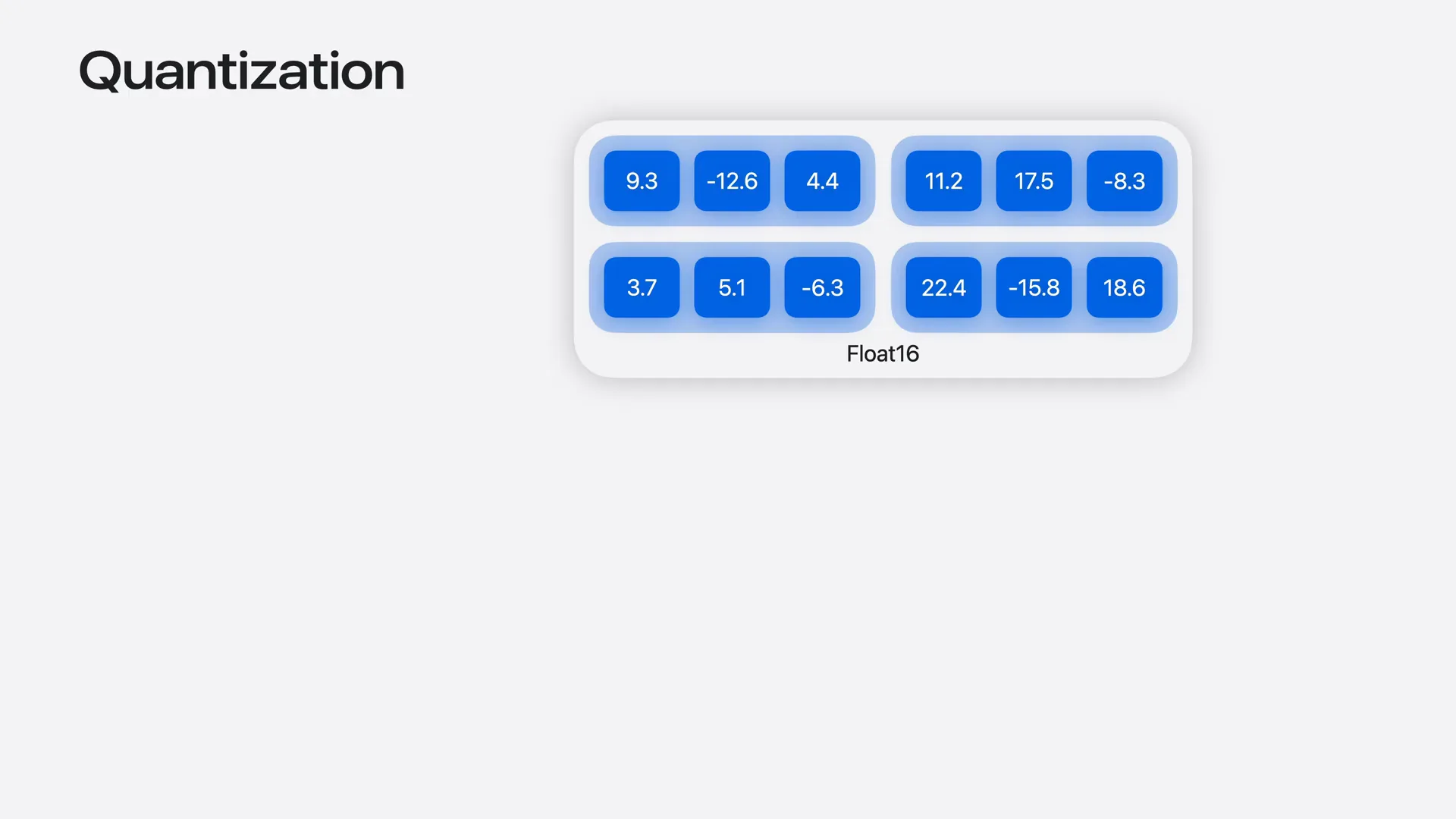 | The standard approach for compressing weights is quantization. This involves taking higher precision weights and reducing them to lower precision data types. |
Slide 17 — 3:08 (watch)
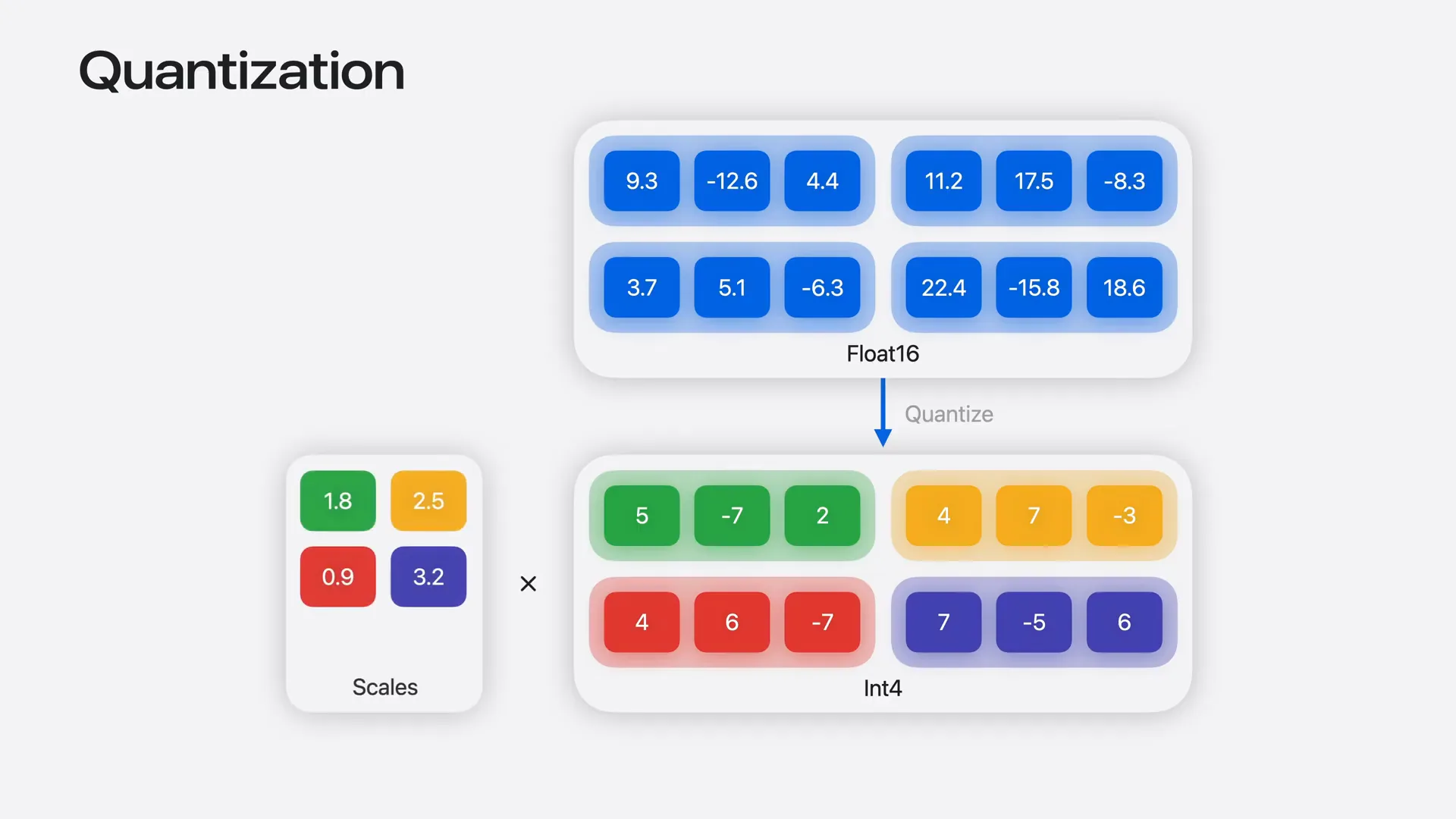 | For example, 16-bit half-precision weights can be compressed to just 4 bits. These quantized weights are paired with scale factors, allowing us to scale the quantized value back to the original range during computation. In addition to 16- and 32-bit floating-point types, tensor operations now natively support quantized data types. |
Slide 18 — 3:34 (watch)
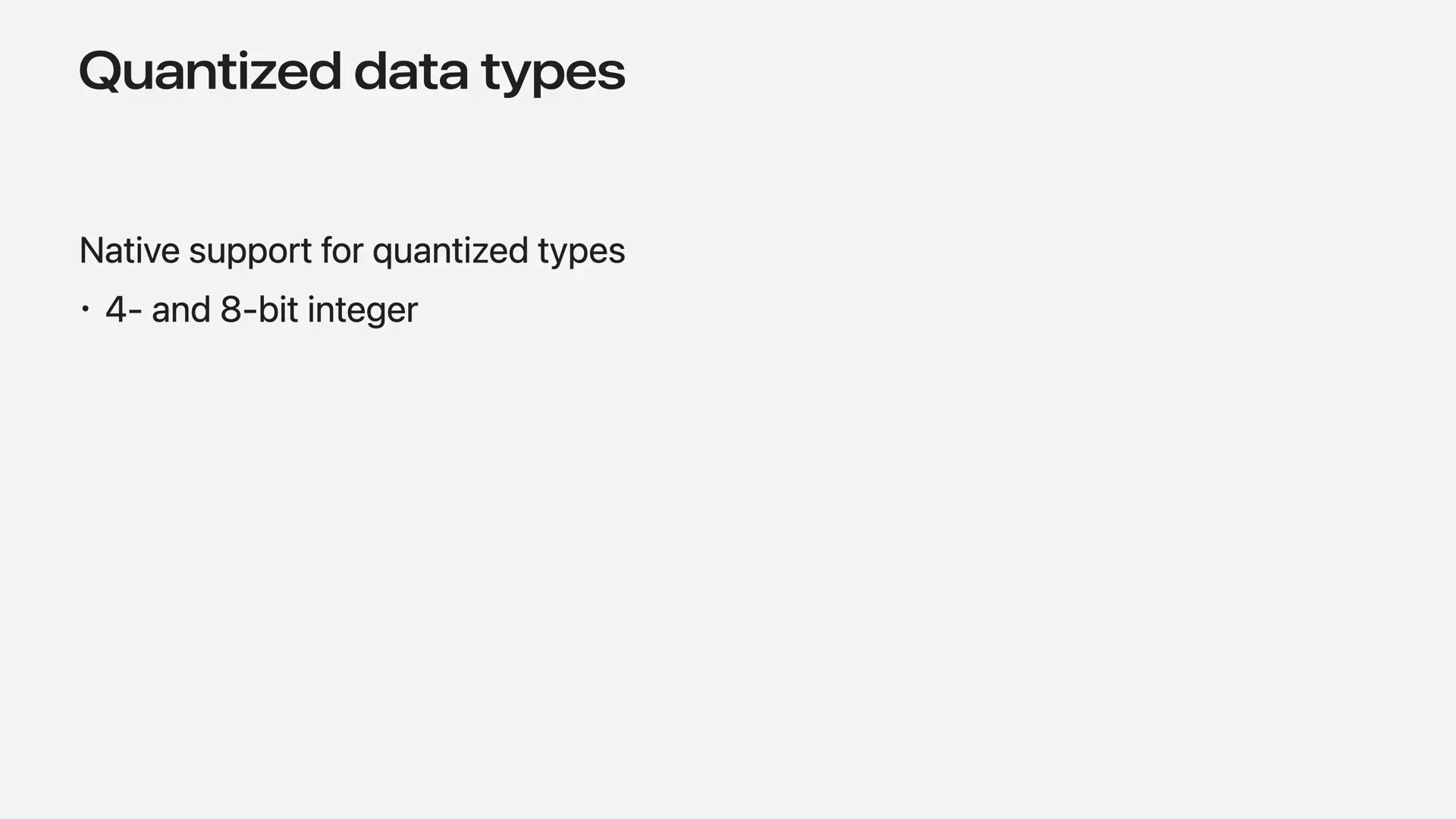 | We added support for 4- and 8-bit integer types in the update to macOS and iOS 26, and we are extending support to additional data types in macOS and iOS 27. This includes 4- and 8-bit floating-point types, as well as 2-bit integer types. |
Slide 19 — 3:48 (watch)
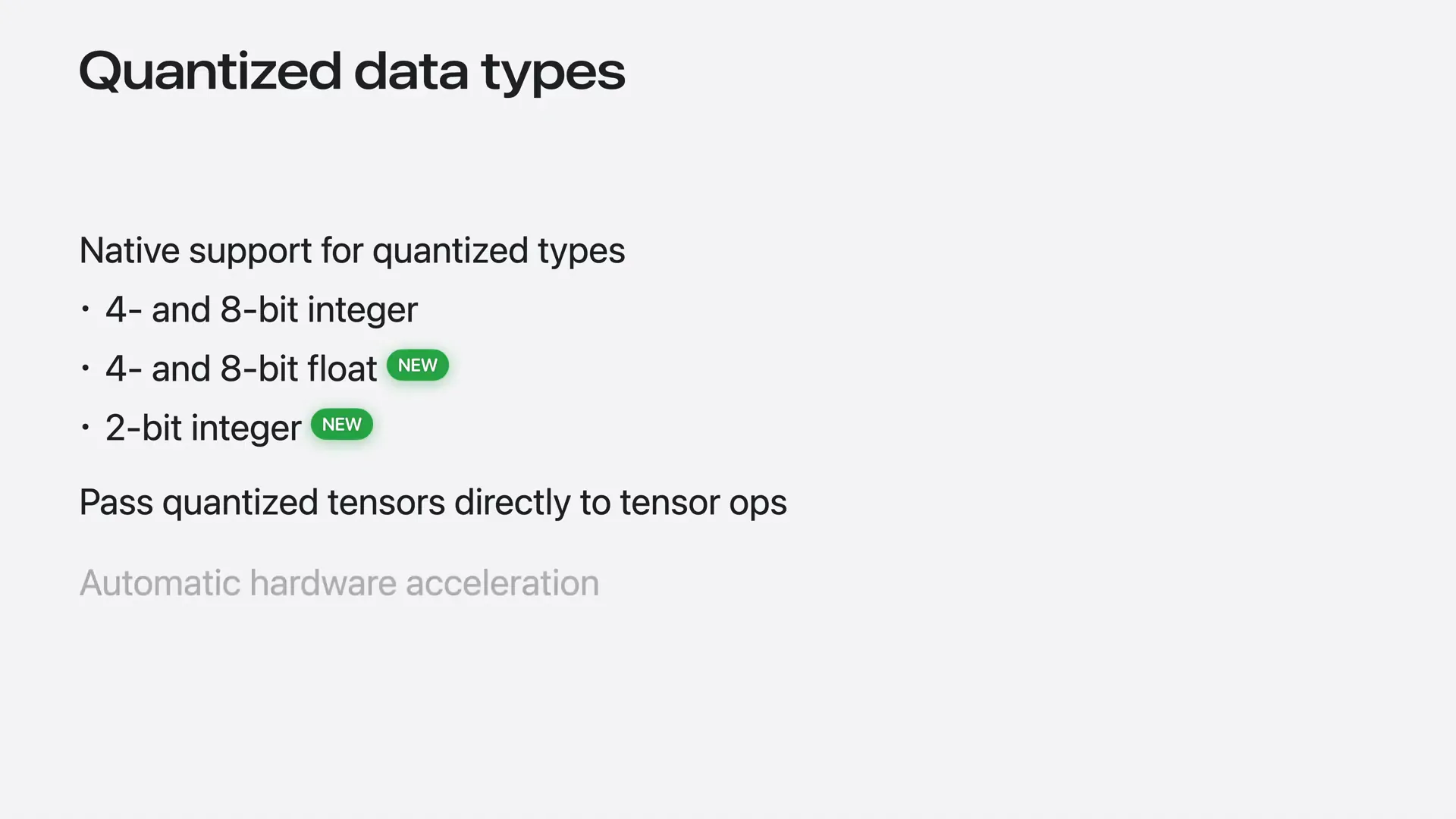 | You can create and pass your IAFS quantizer tensors to tensor operations, which will automatically utilize any available hardware acceleration. |
Slide 20 — 4:04 (watch)
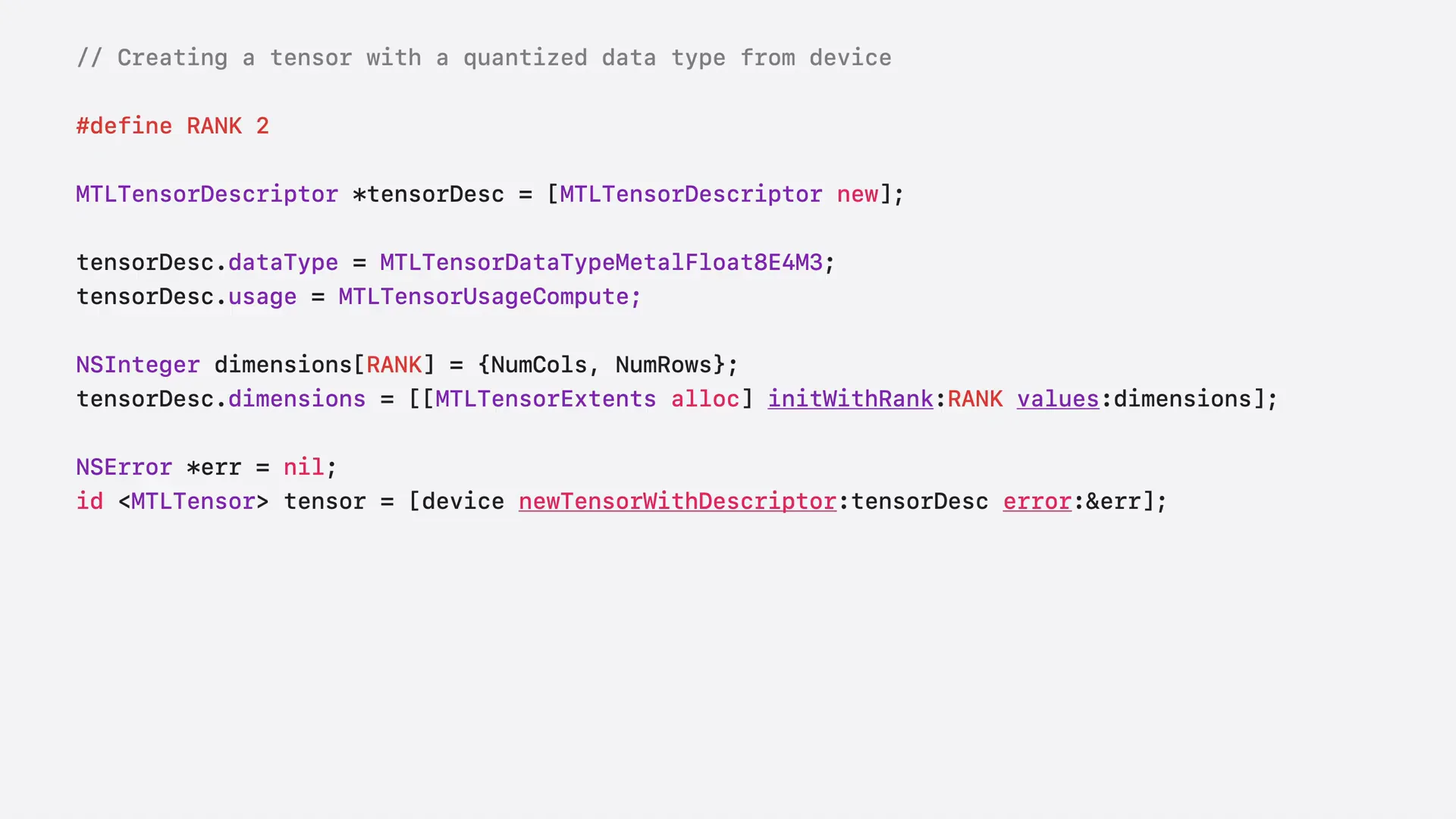 | Creating a tensor with a quantized data type is similar to creating a regular tensor. You fill in the descriptor's properties as you would for any other tensor, but specify a quantized data type. Then, create the tensor by calling newTensorWithDescriptor on your Metal device. |
Slide 21 — 4:18 (watch)
 | You can store your quantized element data using the method described. Next, let's discuss scale factors. |
Slide 22 — 4:36 (watch)
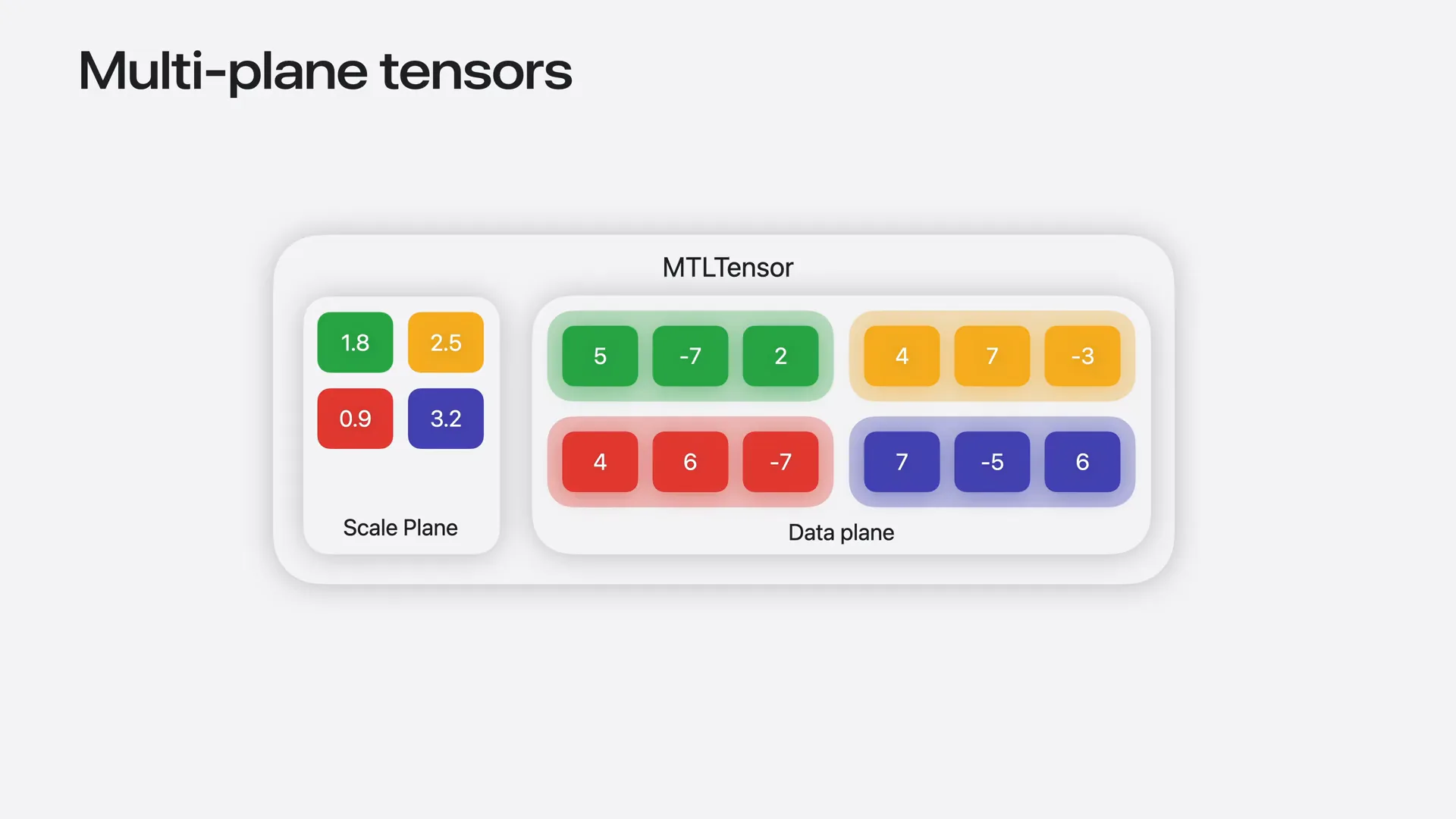 | In macOS and iOS 27, a single MTL tensor object can represent scales alongside the tensor's quantized data as an additional scales plan. This plan supports the popular FP8 EAM0 block-wide scale factor format. Each element of the scales plan applies to a block for each element in the data plan. Declaring the scales plan is similar to declaring a tensor. |
Slide 23 — 5:04 (watch)
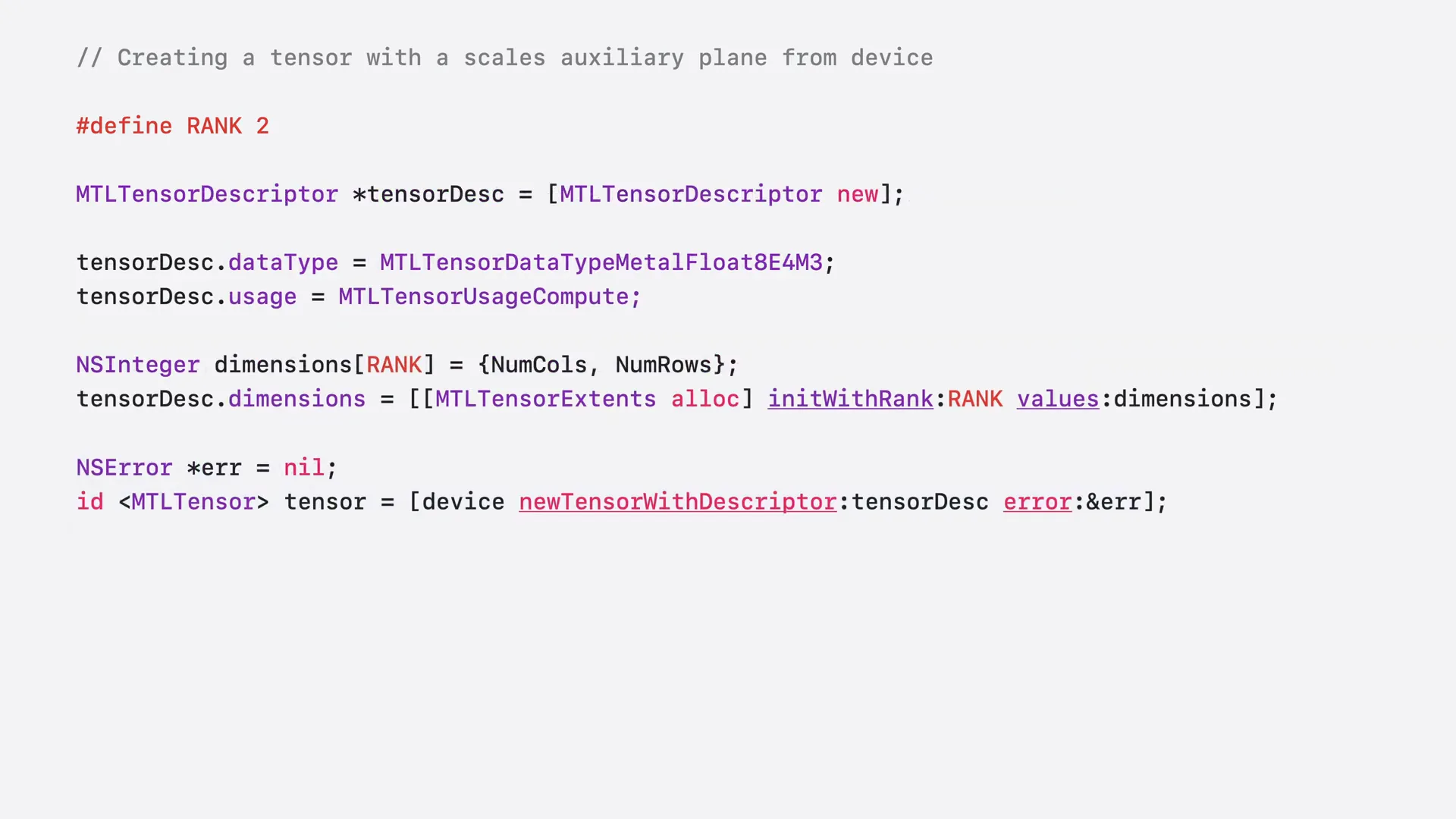 | First, create a descriptor object for the scales plan. Next, fill in the data type and block factors. Then, create an auxiliary plan map to specify that this plan is for scales. Finally, attach the auxiliary plan map to your original tensor descriptor. The quantized data, scales, and metadata will all be packed into a single tensor object. Now, let's put this into practice by extending a basic matrix multiplication kernel to support quantization. |
Slide 24 — 5:26 (watch)
 | Matrix multiplication is a core operation in machine learning workloads. |
Slide 25 — 5:34 (watch)
 | For instance, LMS performs millions of matrix multiplications during inference. |
Slide 26 — 5:48 (watch)
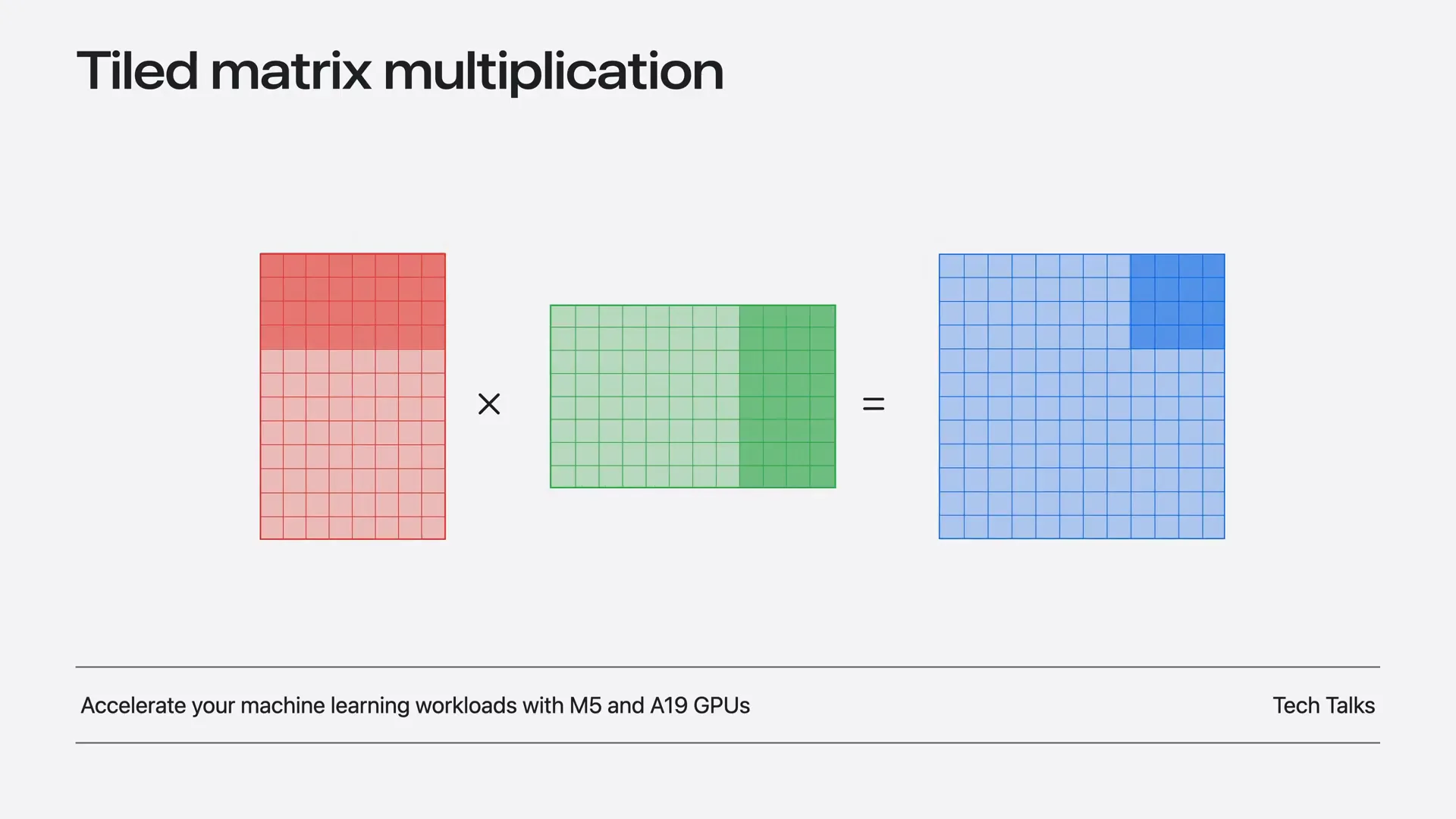 | We discussed how to write a high-performance matrix multiplication kernel using TensorOps in the M5 machine learning talk. The approach involves slicing the input matrices into smaller tiles and performing tile-wise matrix multiplications with TensorOps. This method maximizes parallelism and optimizes data caching. |
Slide 27 — 6:02 (watch)
 | We can use quantization to further reduce memory traffic and accommodate larger models in memory. |
Slide 28 — 6:24 (watch)
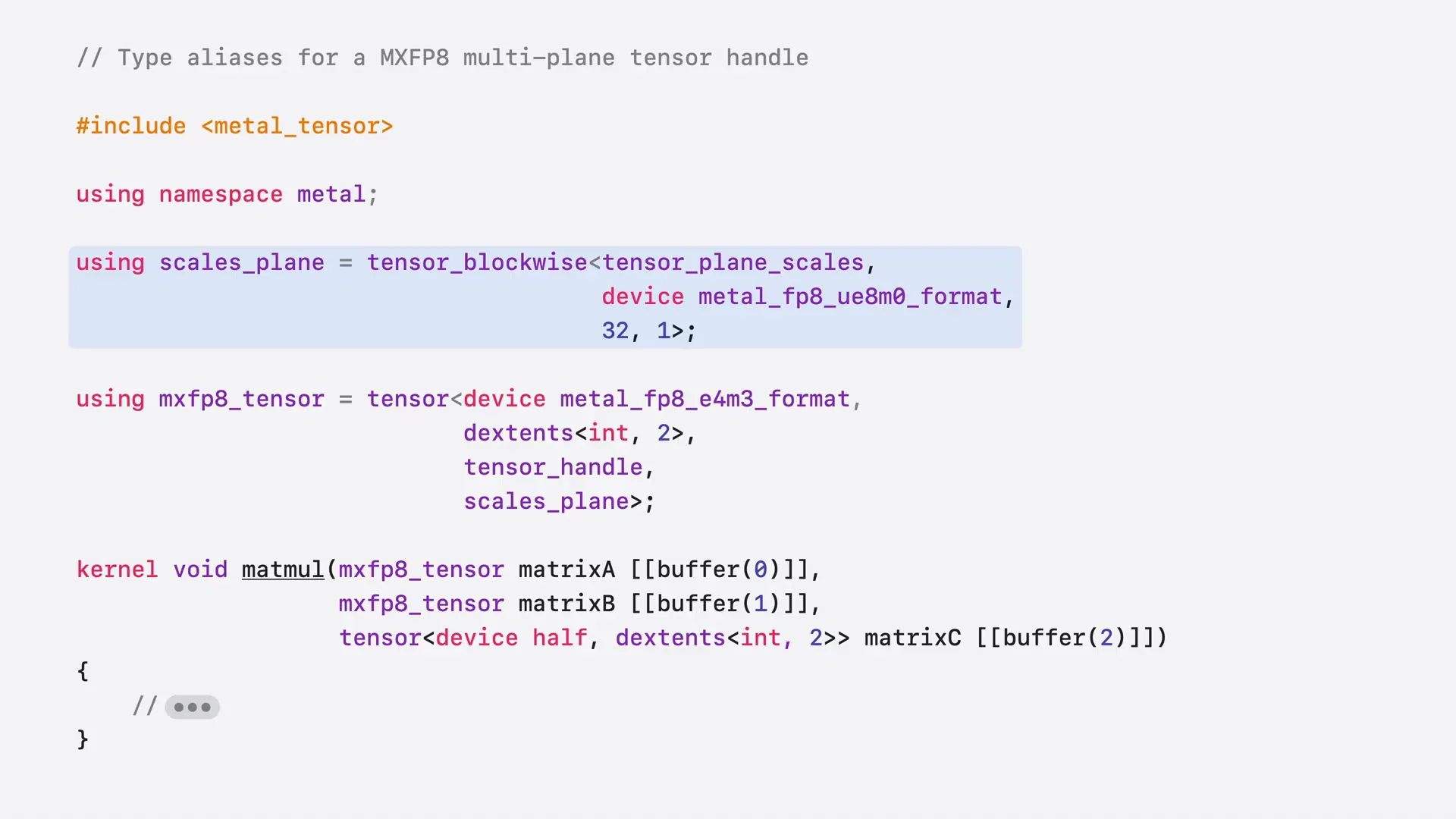 | In the kernel, it is beneficial to define type aliases upfront before binding the tensors. Here, we declare a scale factor plan using the FP8 EAM0 data type and a block size of 32 by 1. This means every 32 elements in the data plan share a single element in the scales plan. Next, we declare a full tensor type, specifying the FP8 data type along with the scales plan. You can bind these tensors to buffer binding points, allowing the kernel to access the tensors allocated on the host side. |
Slide 29 — 6:46 (watch)
 | Alternatively, if you don't want to create a full Metal tensor on the host, you can create a temporary tensor directly on the shader stack. |
Slide 30 — 6:54 (watch)
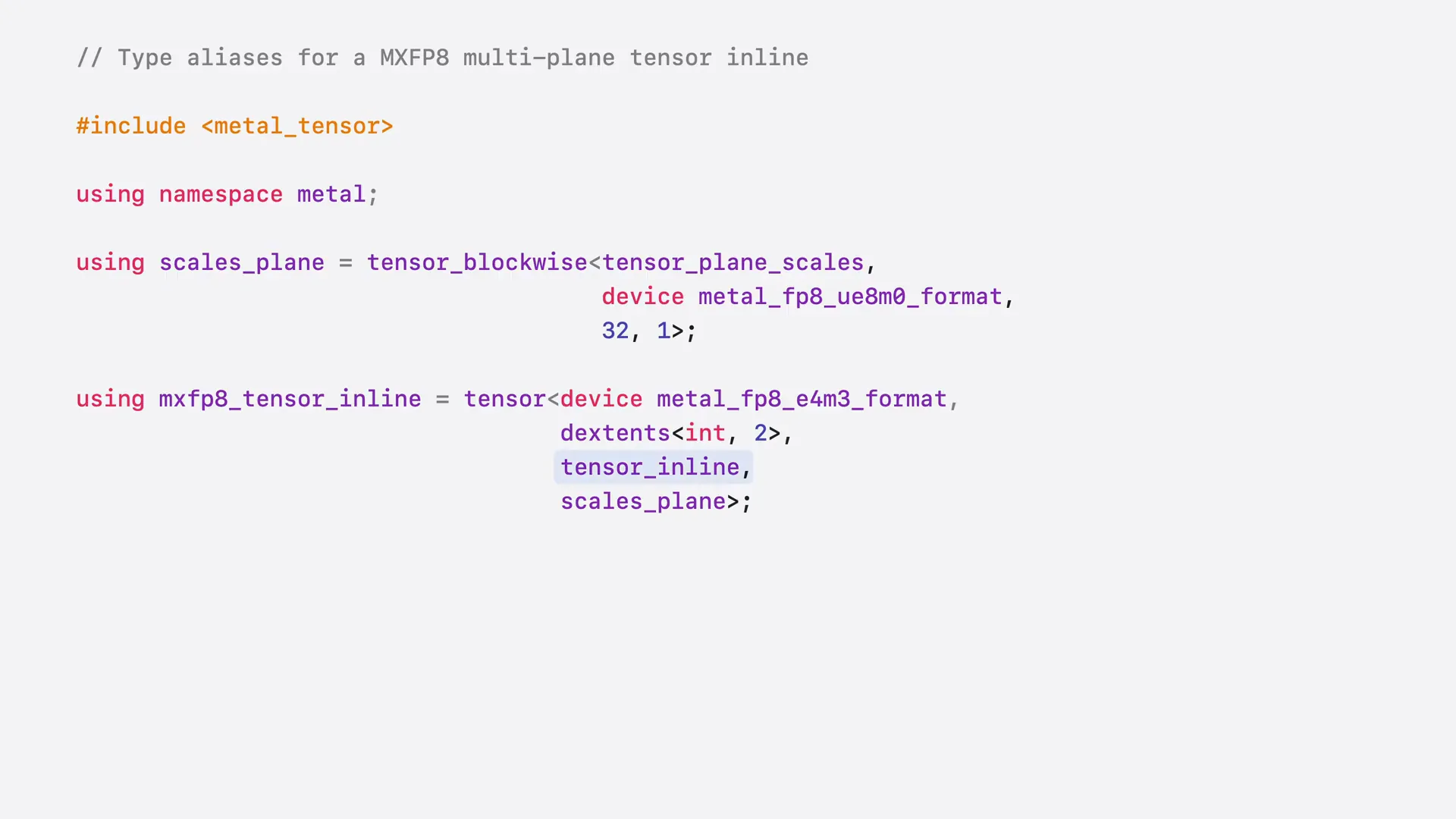 | The syntax is nearly identical; simply replace the tag tensor handle with tensor inline. |
Slide 31 — 7:02 (watch)
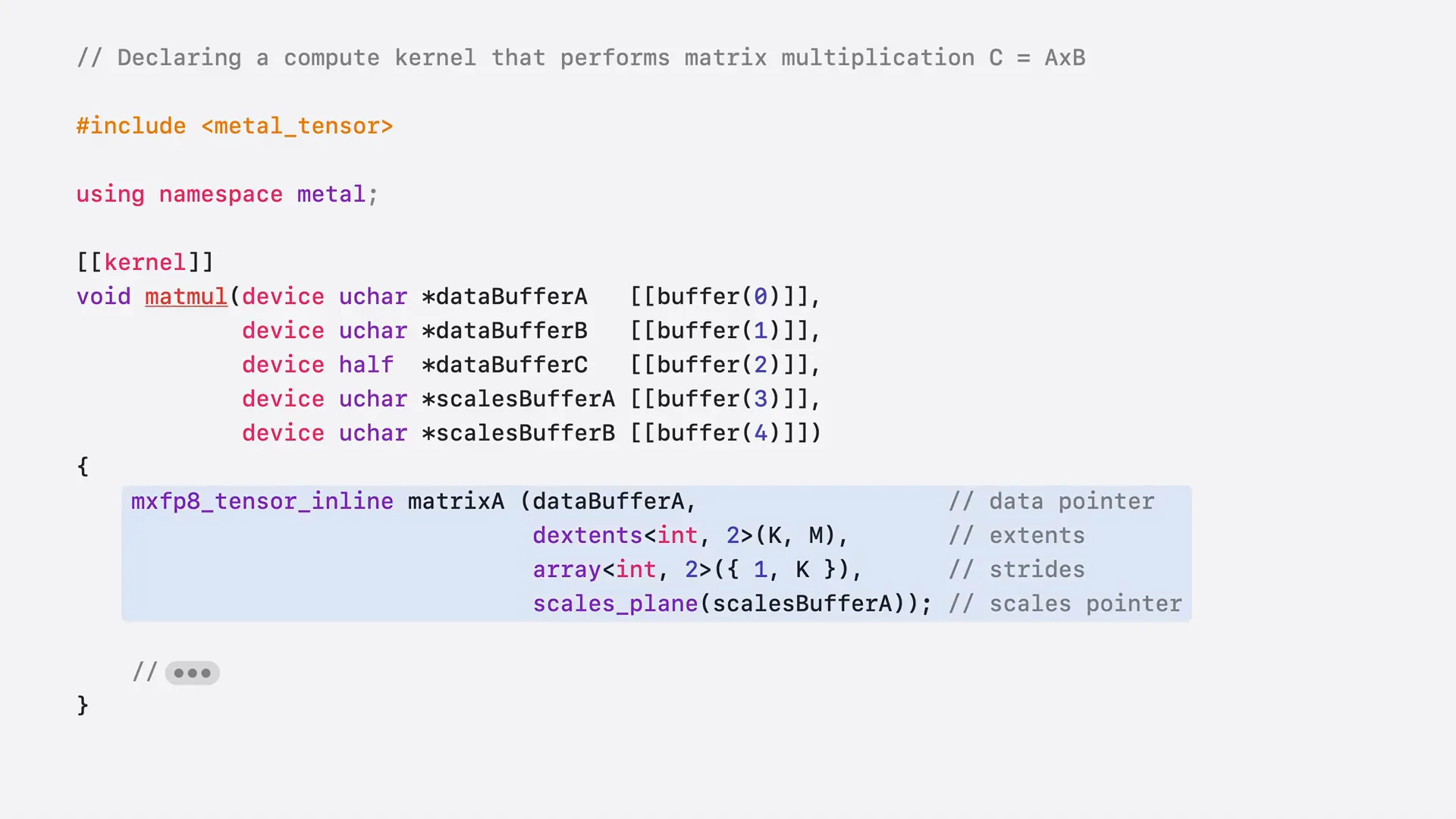 | Pass your buffer pointers and other metadata to the tensor constructor to create a tensor on the stack. |
Slide 32 — 7:12 (watch)
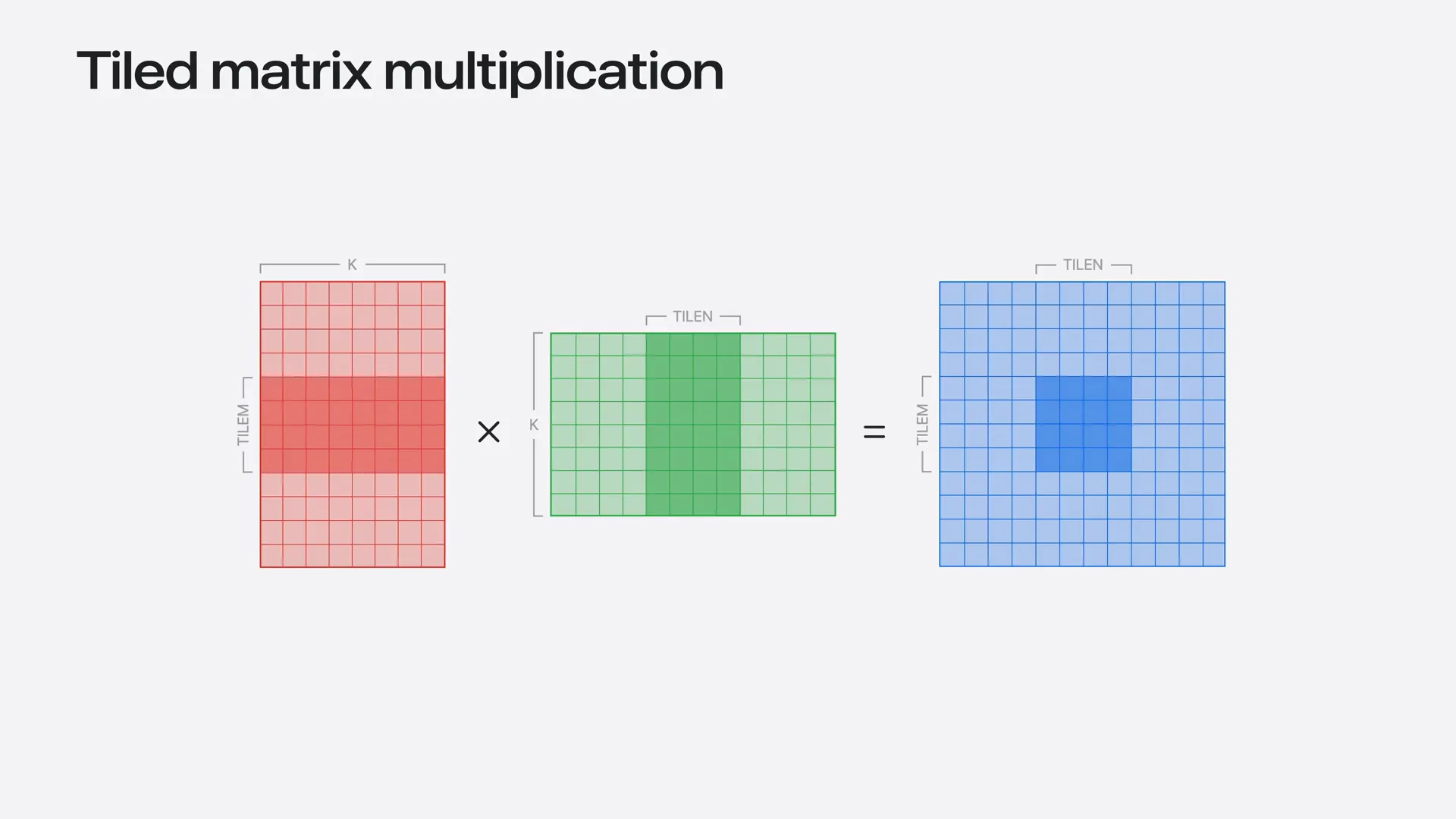 | We will divide the problem across multiple thread groups to enhance parallelism. First, we will slice out the tile for each thread group, and then we will perform the multiplication using tensor operations. |
Slide 33 — 7:26 (watch)
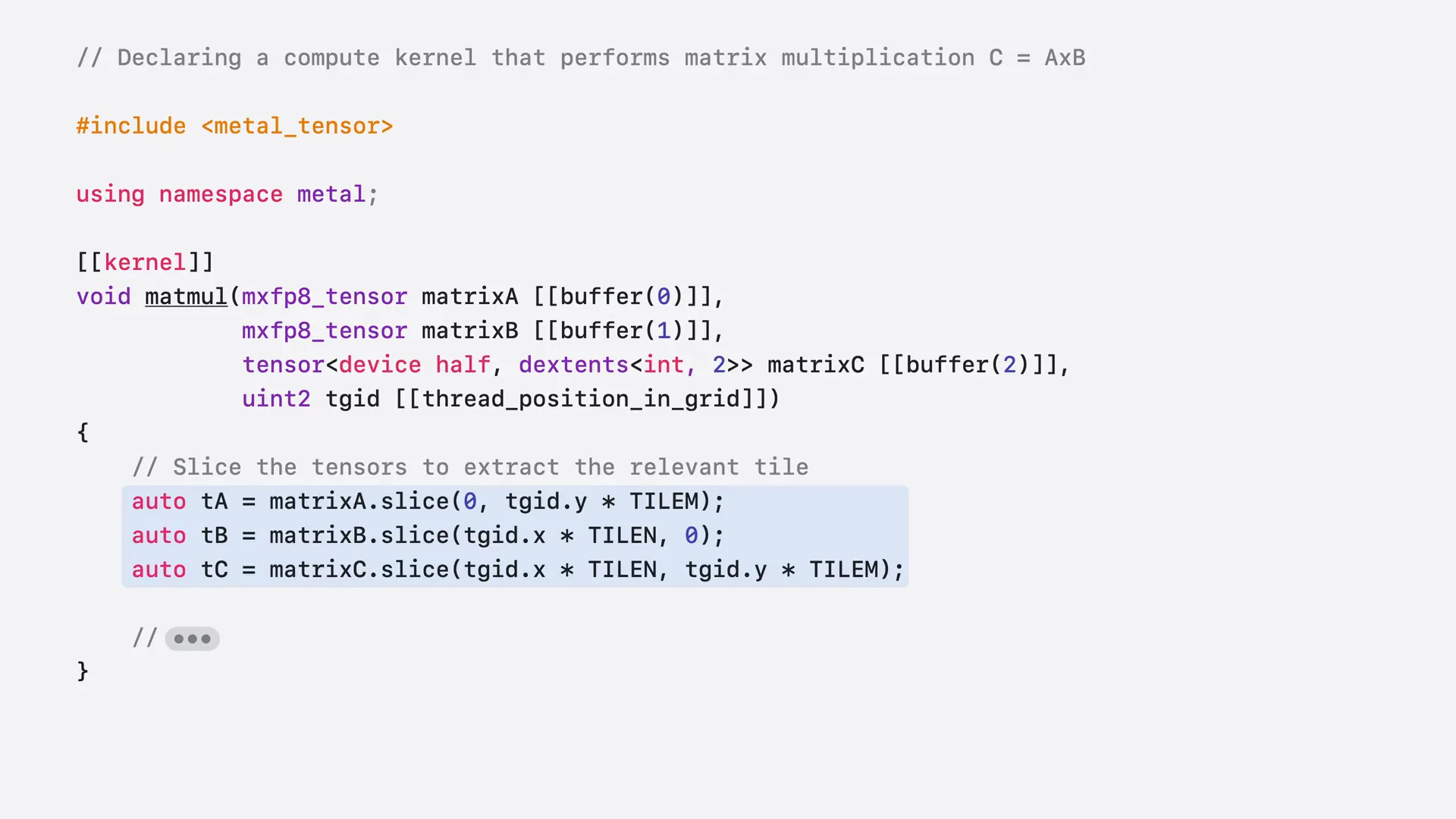 | To achieve this, call the slice function on your input and output tensors using the thread group ID. The data and the scales plan will be sliced simultaneously according to the block size. |
Slide 34 — 7:46 (watch)
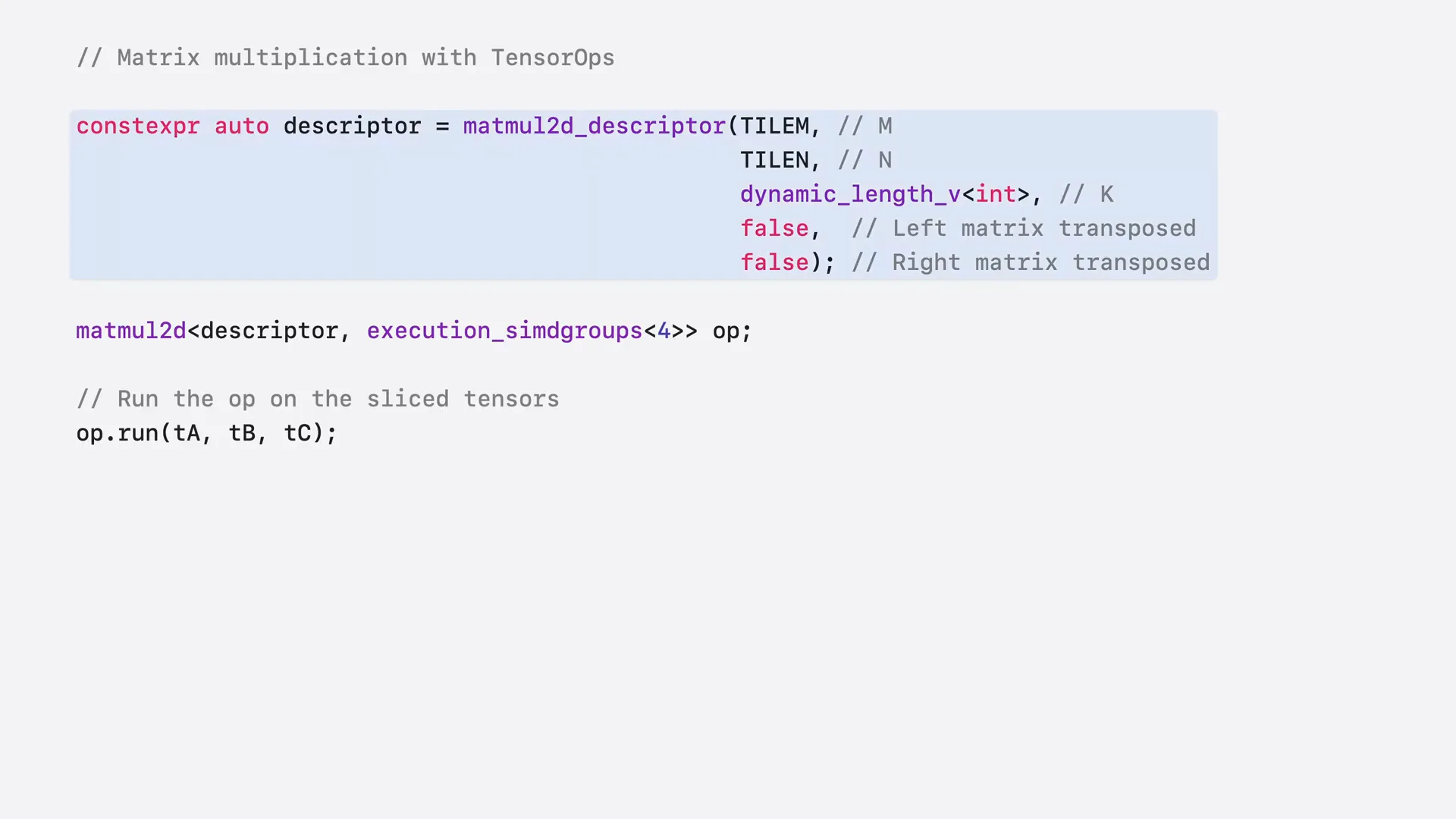 | Setting up the matrix multiplication with a quantizer tensor is the same as with normal tensors. First, configure the matmul2d descriptor by specifying the tile sizes and other parameters. Next, create a matmul2d operation, indicating the number of command groups in the thread group. Finally, pass in your quantizer tensor, and the tensor operations will manage the dequantization for you. |
Slide 35 — 8:06 (watch)
 | In most cases, you should input your quantizer data directly into tensor ops, allowing them to automatically leverage any available hardware acceleration. |
Slide 36 — 8:12 (watch)
 | If you need to dequantize a custom format, tensor operations can still accommodate this requirement. |
Slide 37 — 8:28 (watch)
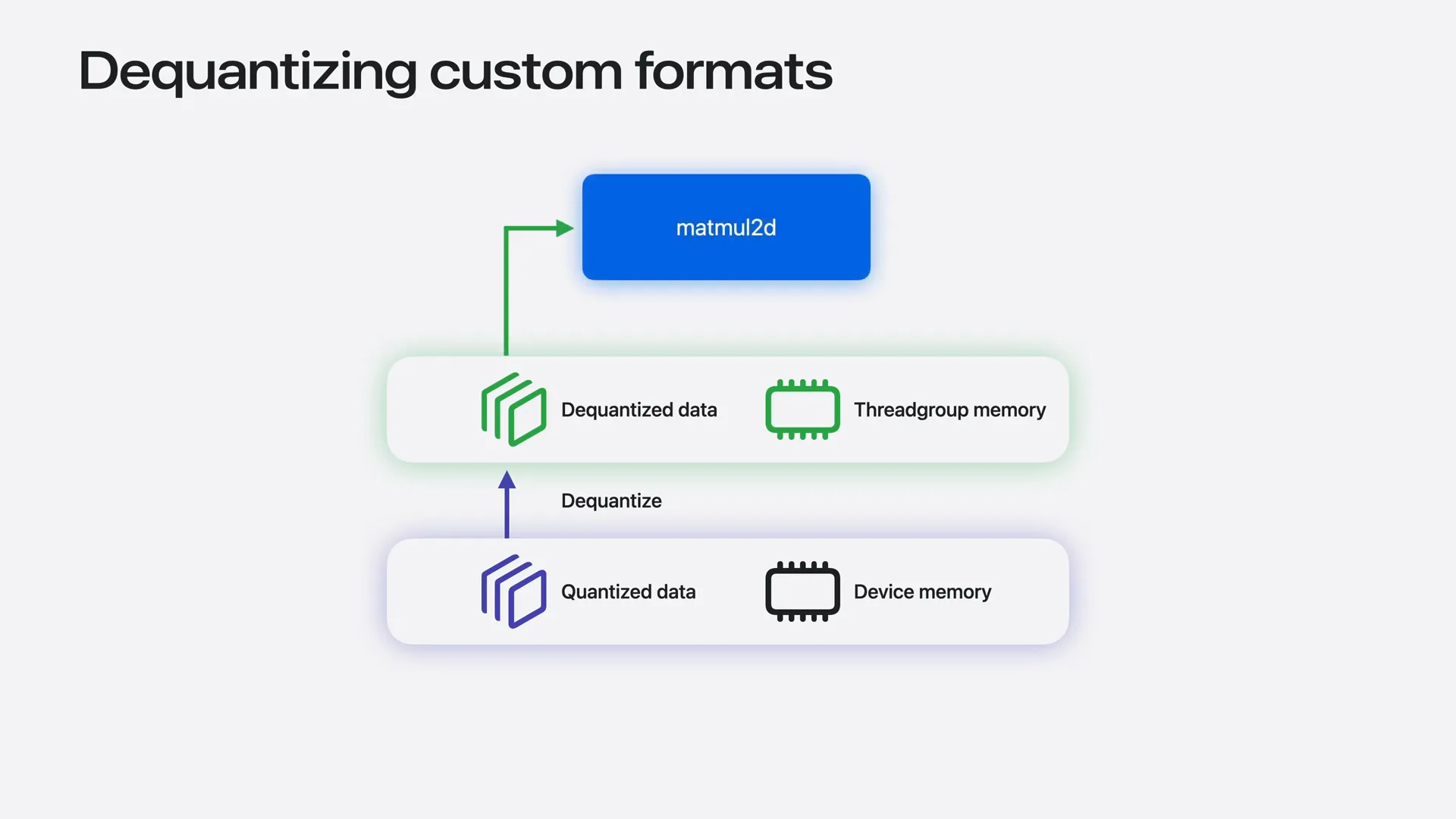 | The simplest approach involves each thread loading a chunk of quantizer data from device memory and dequantizing it to F16 values in the thread group memory. This data can then be passed as an inline thread group tensor to tensor operations. However, this method requires additional load and store operations through thread group memory. Ideally, we should keep all this data in thread registers instead. |
Slide 38 — 8:44 (watch)
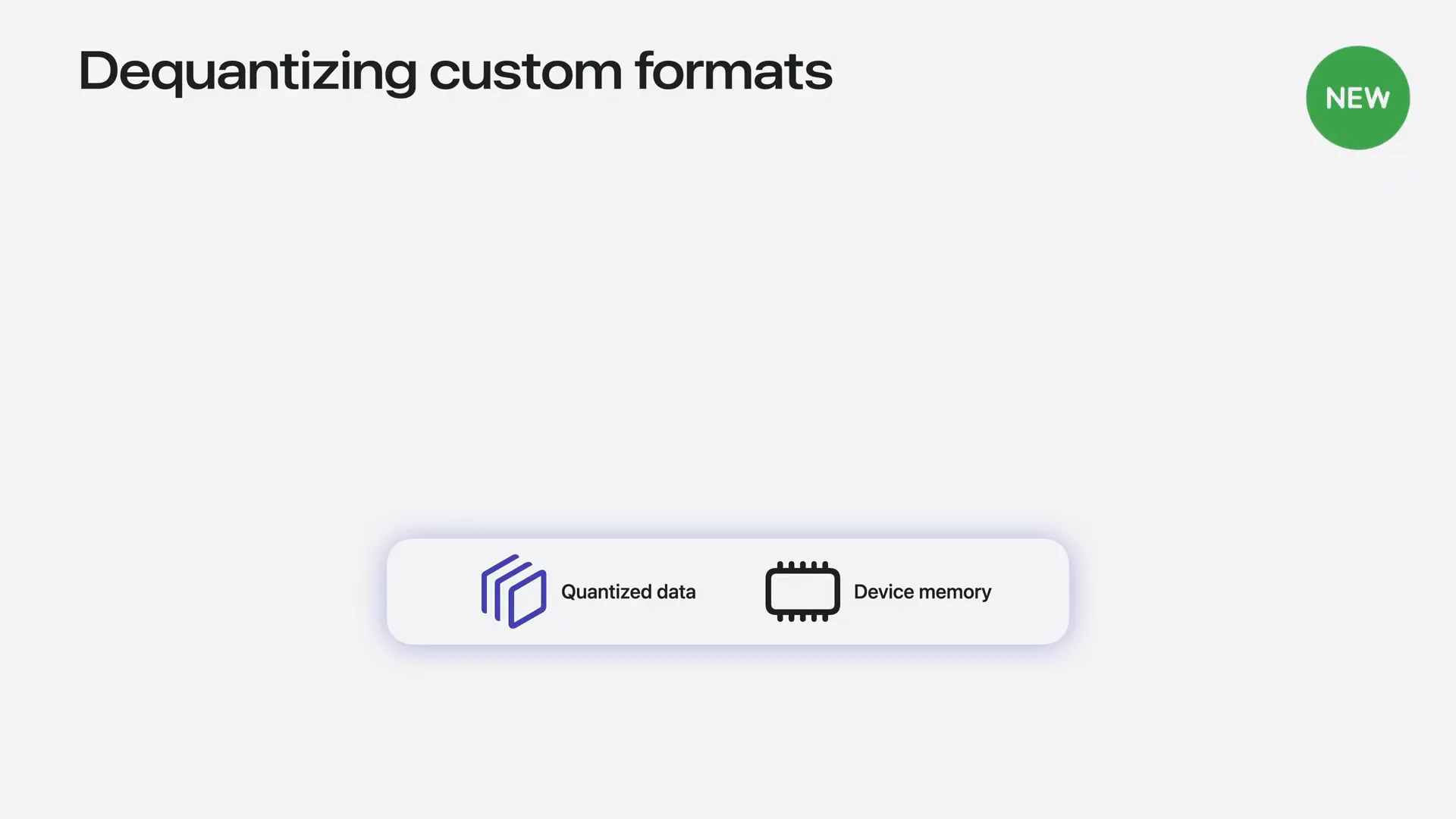 | You can achieve this by dequantizing the data into a cooperative tensor, which can then be used as the input for the matmul2d operation. |
Slide 39 — 8:54 (watch)
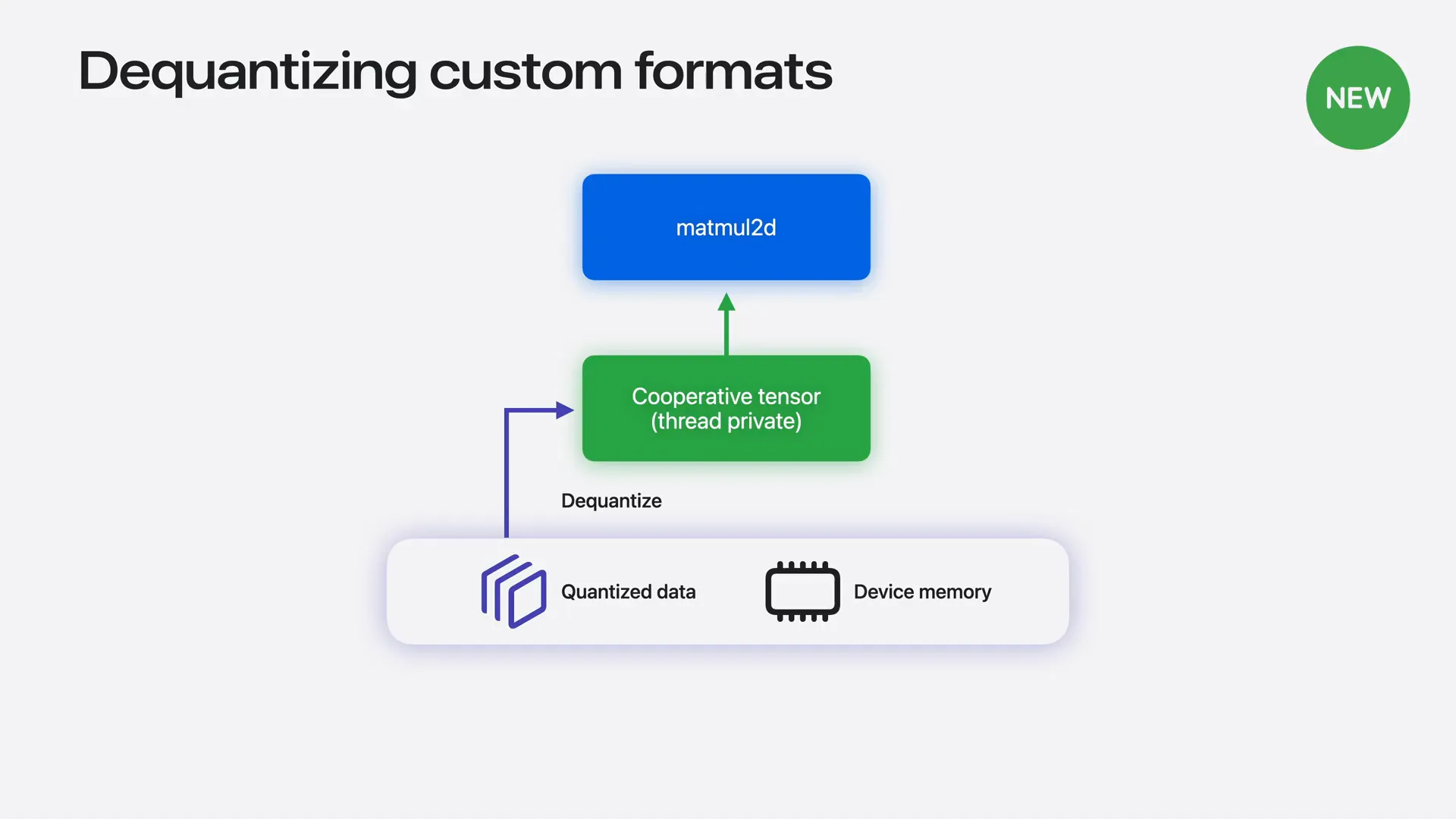 | Cooperative tensors distribute their storage across the thread-private memory of the threads participating in the matmul operation. If you cannot use a quantizer tensor directly, you can still avoid the round trip through thread group memory. |
Slide 40 — 9:10 (watch)
 | To recap, Metal tensors natively support a wide range of quantizer data types, including the new MX scaling formats and the EM0 scale factors coming in iOS and macOS 27. |
Slide 41 — 9:22 (watch)
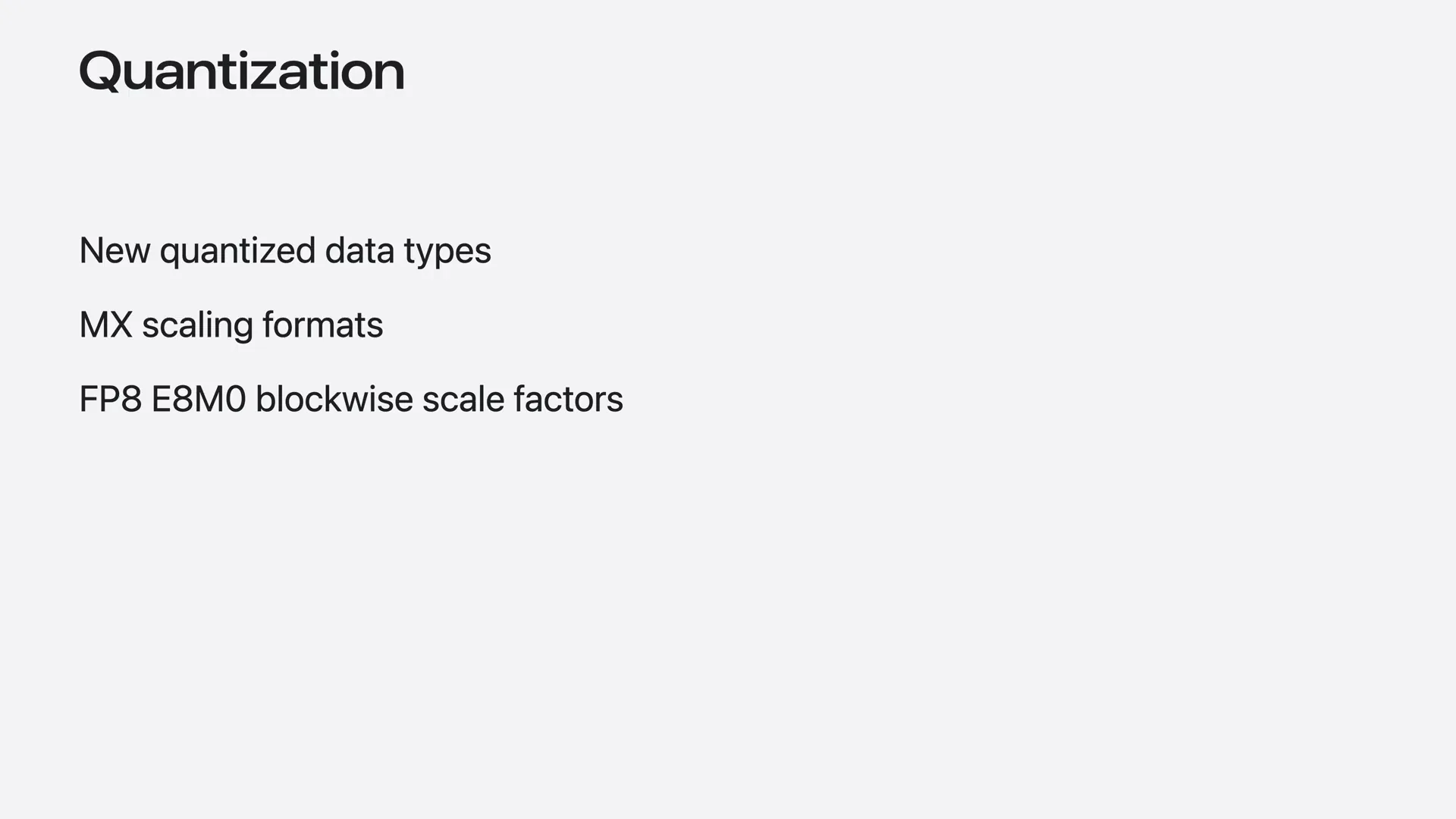 | These new data types have additional alignment requirements compared to larger data types, so be sure to check the Metal documentation for details. |
Slide 42 — 9:34 (watch)
 | Now let's advance to building a more complex custom operation using tensor operations. |
Slide 43 — 9:54 (watch)
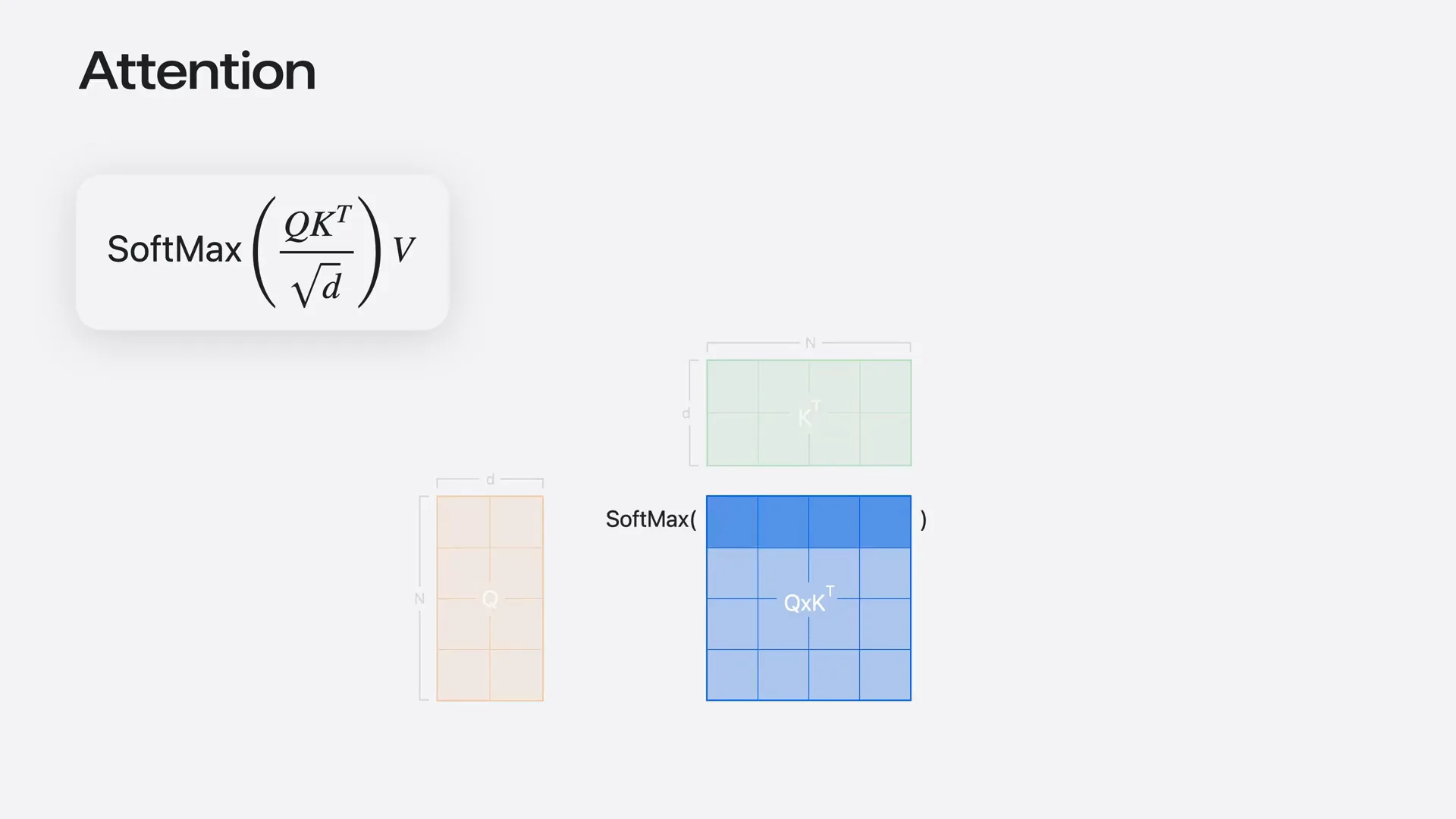 | Attention is fundamental to every transformer network, including language models. To compute attention, you first multiply two matrices, known as Q and K. Then, you compute the softmax using reductions on the rows of the intermediate matrix. Finally, you multiply by a third matrix. The popular flash attention algorithm combines all these operations into a single kernel. |
Slide 44 — 10:18 (watch)
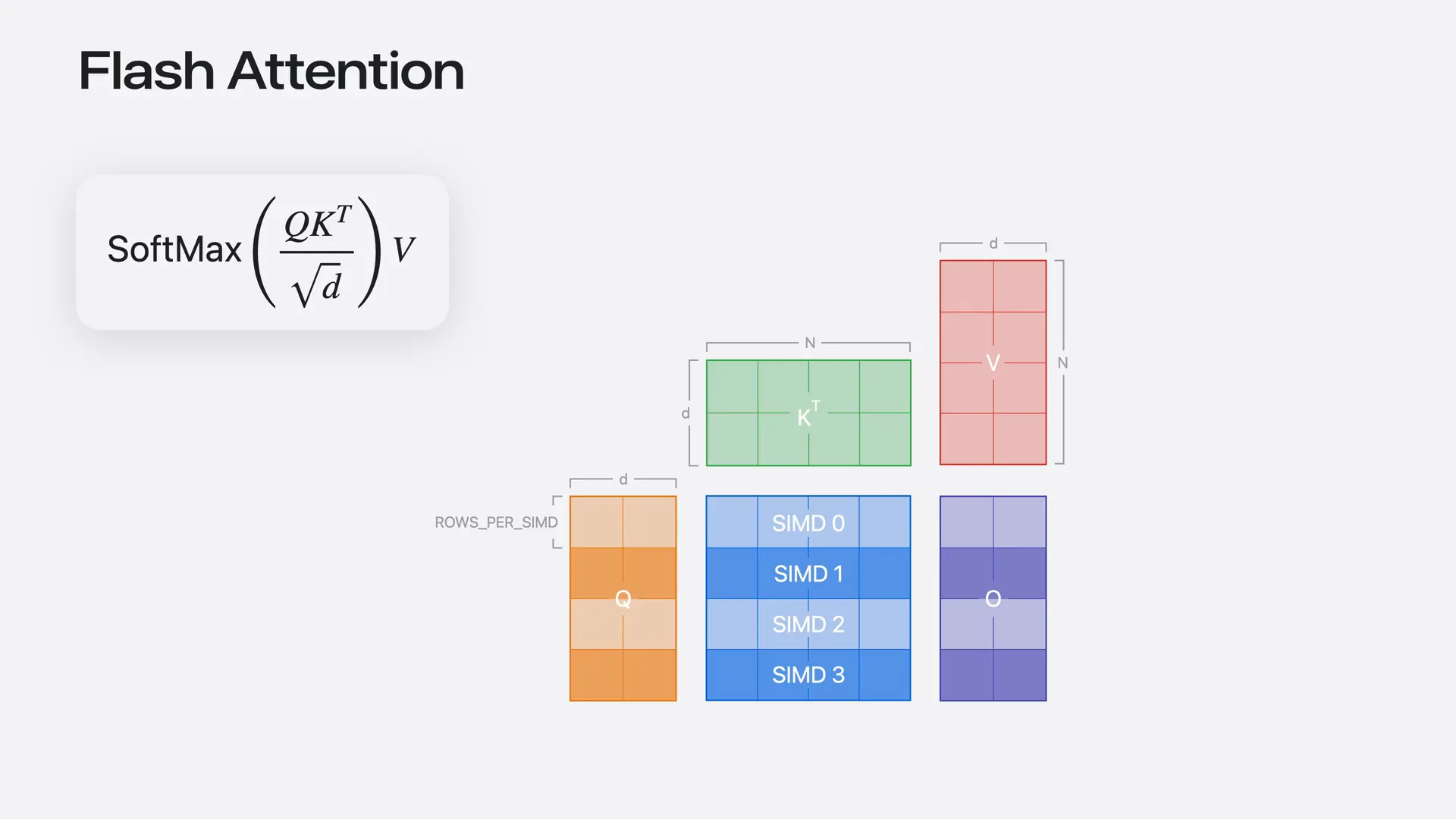 | To implement this with tensor operations, first set up a custom CMD group mapping, ensuring that each CMD group owns complete rows of the intermediate matrix. This configuration allows you to compute the softmax without exchanging data between CMD groups. |
Slide 45 — 10:34 (watch)
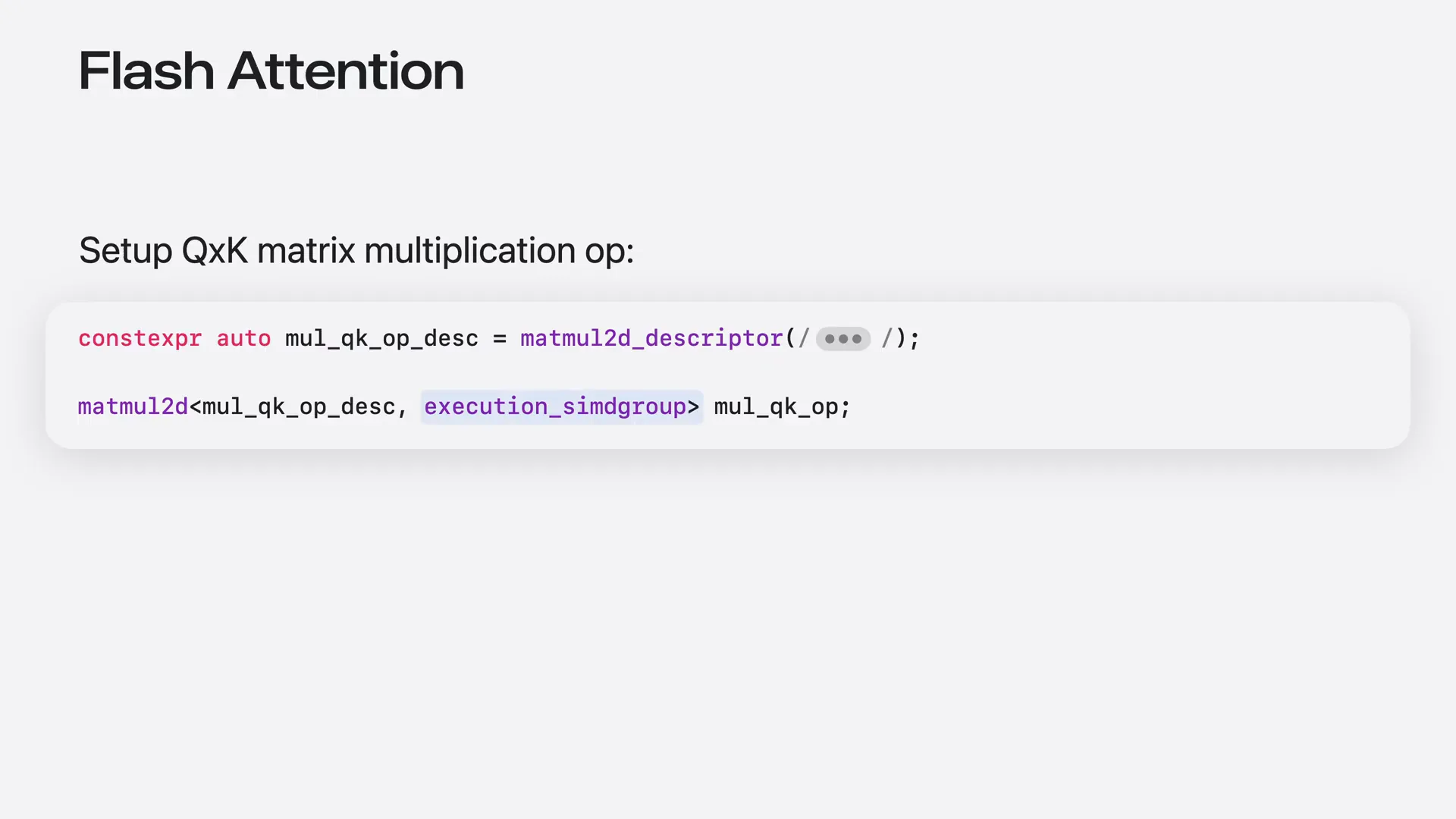 | You can achieve this with the execution CMD group operation scope. Each CMD group will perform independent matrix multiplications in parallel. Use the CMD group ID to slice your input tiles. |
Slide 46 — 10:50 (watch)
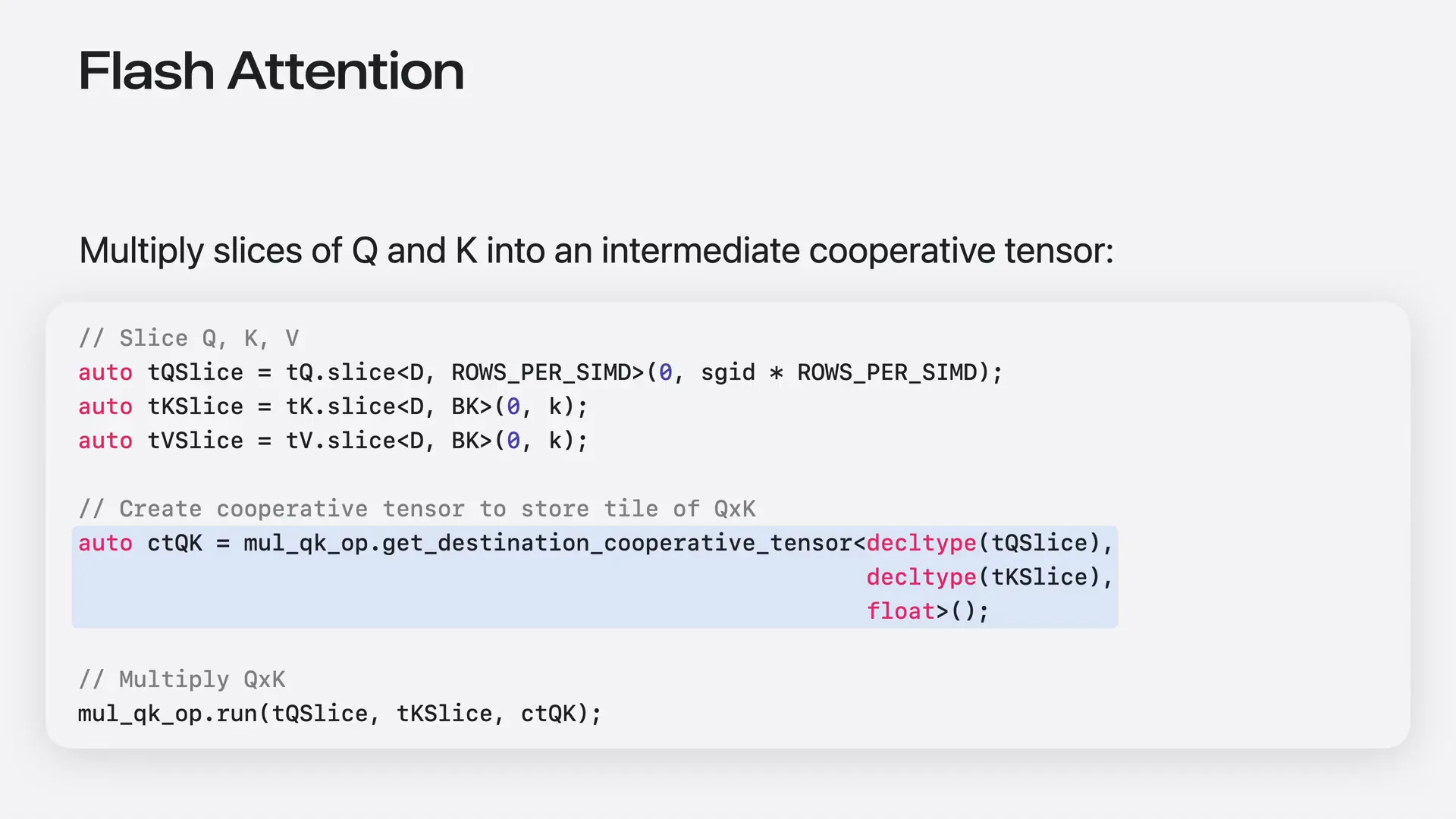 | We will use a cooperative tensor to store the intermediate matrix, allowing us to use it as input for the next step without writing it to memory. We will compute softmax on the result, which requires performing a couple of reductions on the cooperative tensor. |
Slide 47 — 11:02 (watch)
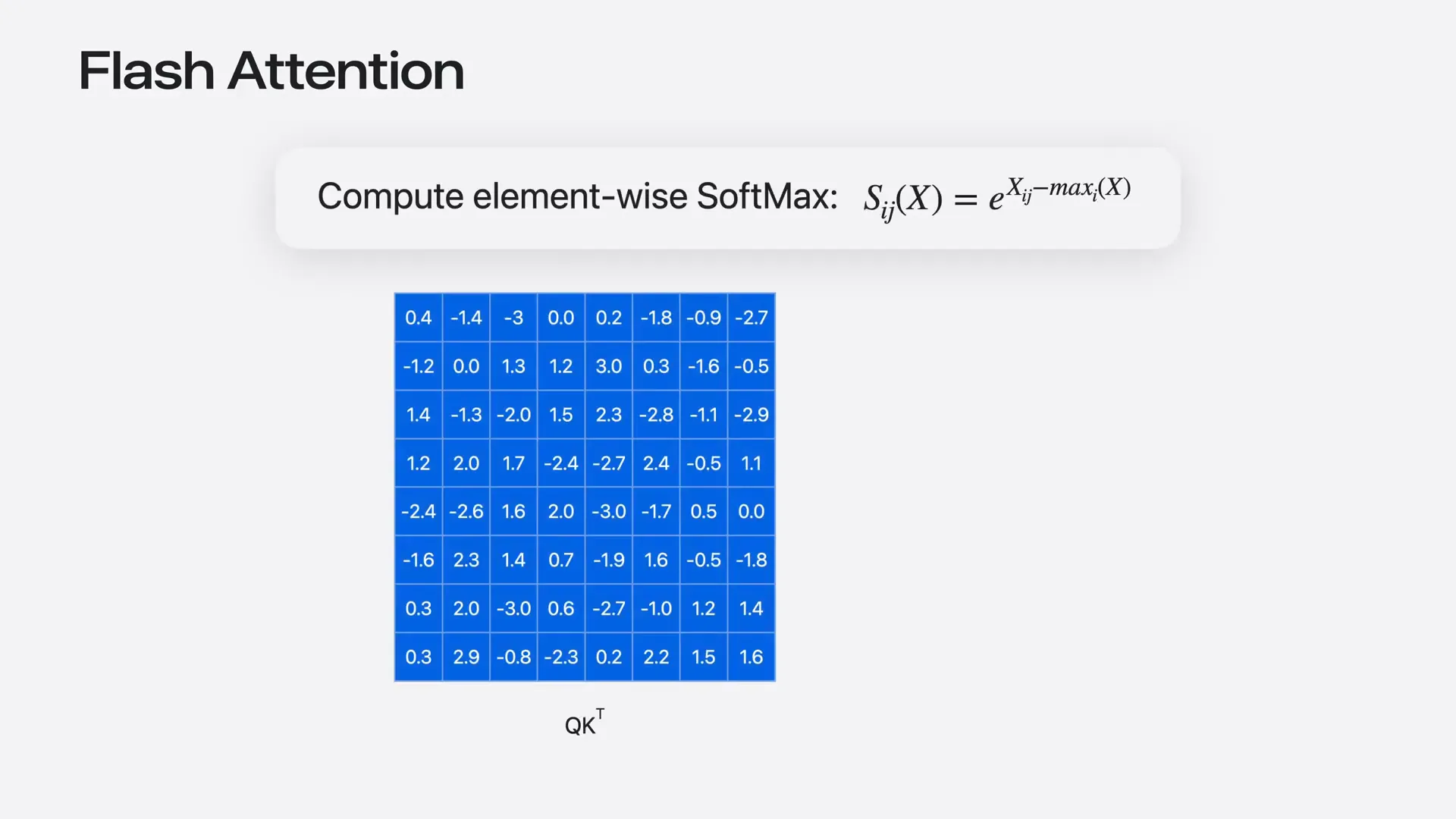 | Tensor operations include a reduce rows function to assist with this. |
Slide 48 — 11:12 (watch)
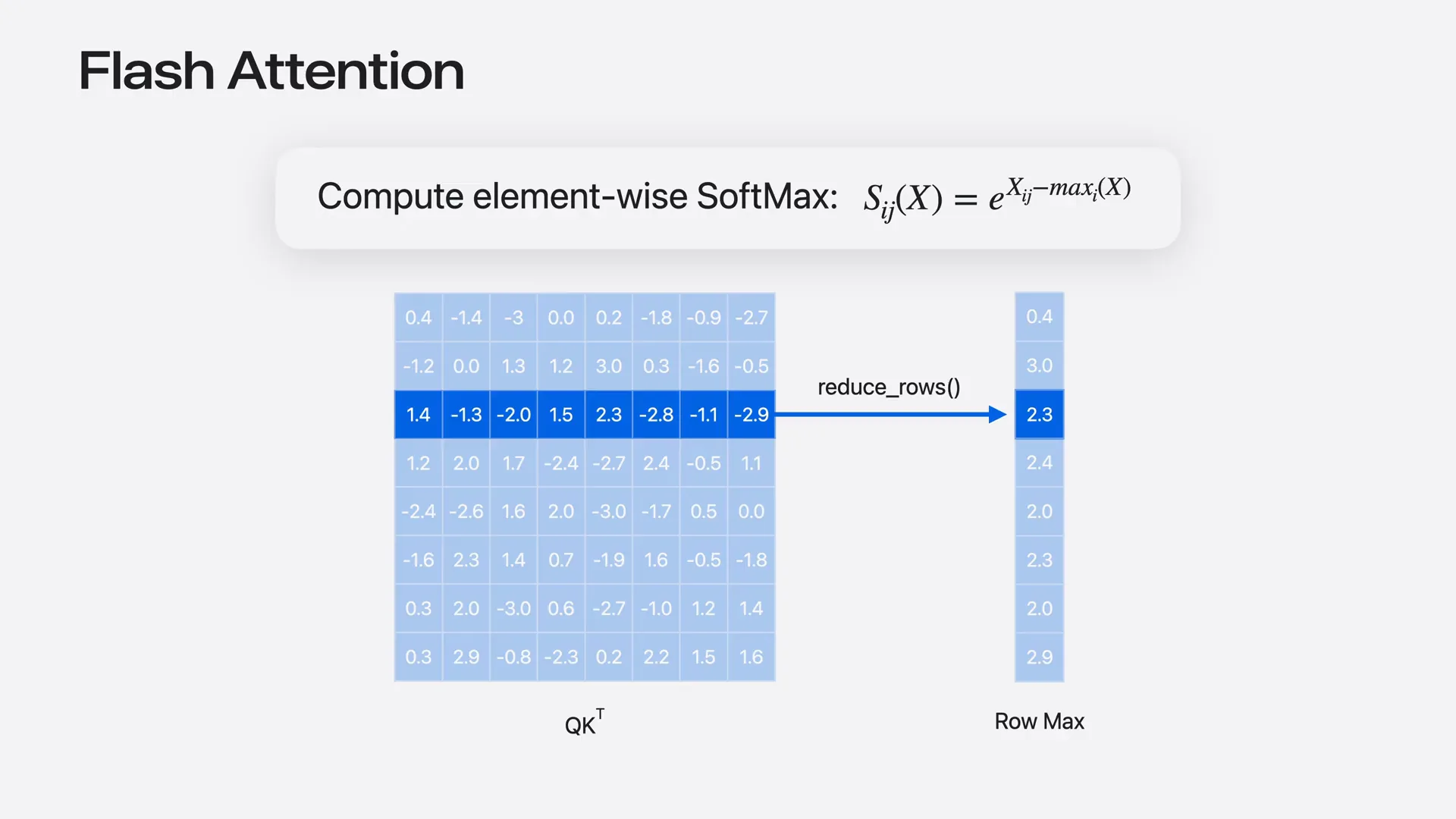 | Threads will exchange data to calculate the maximum for each row. The result is returned in another cooperative tensor. Let's set it up. |
Slide 49 — 11:26 (watch)
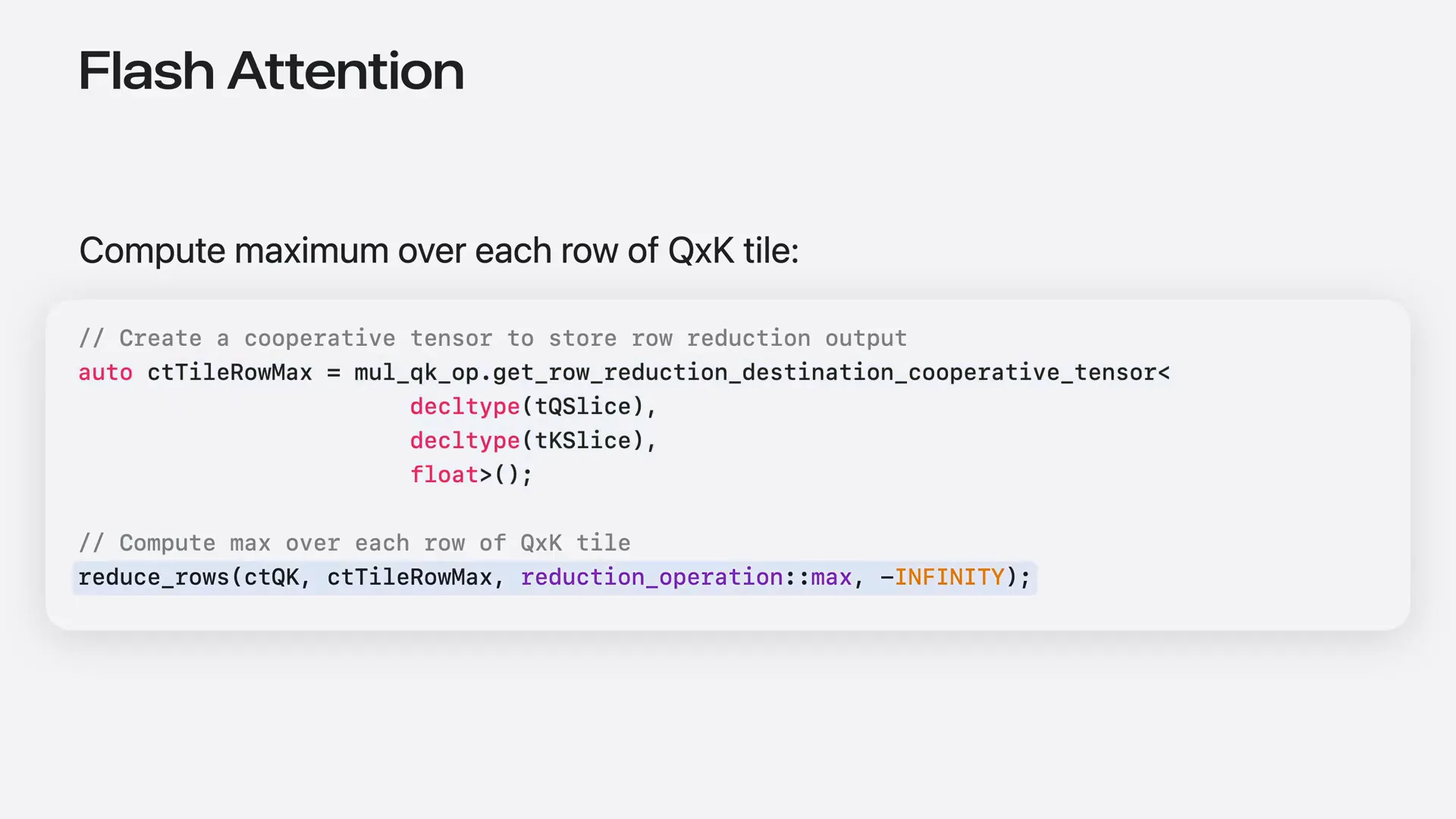 | First, create a cooperative tensor to store the reduction output. Next, pass the source and destination tensors to the reduce rows function. We will use the max reduction operation with an initial value of negative infinity. |
Slide 50 — 11:46 (watch)
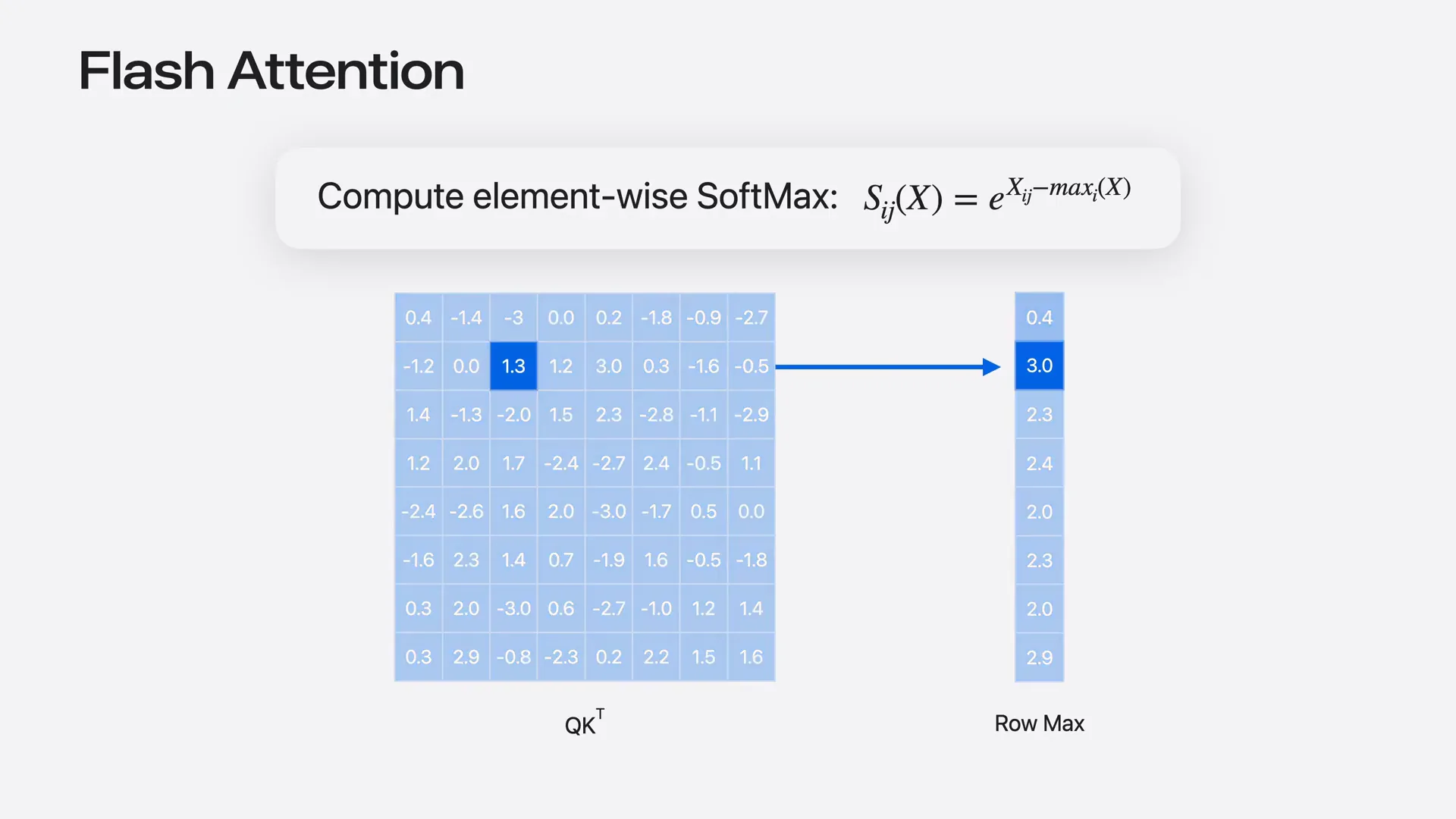 | These two cooperative tensors have different shapes, so to facilitate the mapping between them, tensor operations include a map iterator function. This function takes an iterator pointing to an element in the 2D tensor and returns an iterator pointing to the corresponding element in the reduction destination. |
Slide 51 — 12:06 (watch)
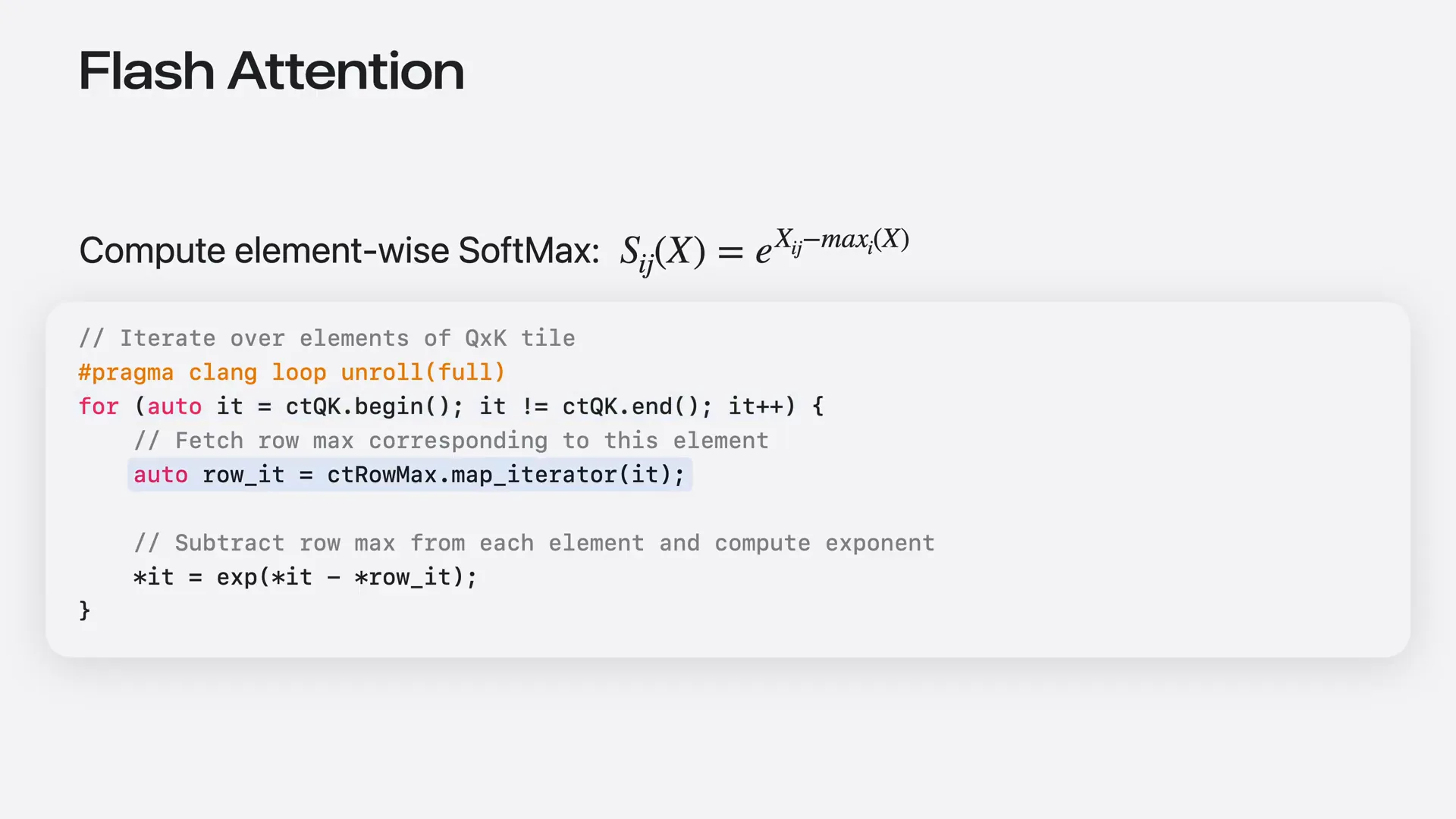 | First, set up a loop over the 2D cooperative tensor using iterators. Then, call the map iterator function to map each element to its corresponding row maximum. Finally, dereference these iterators to compute the software maximum and store the result back into the cooperative tensor. |
Slide 52 — 12:20 (watch)
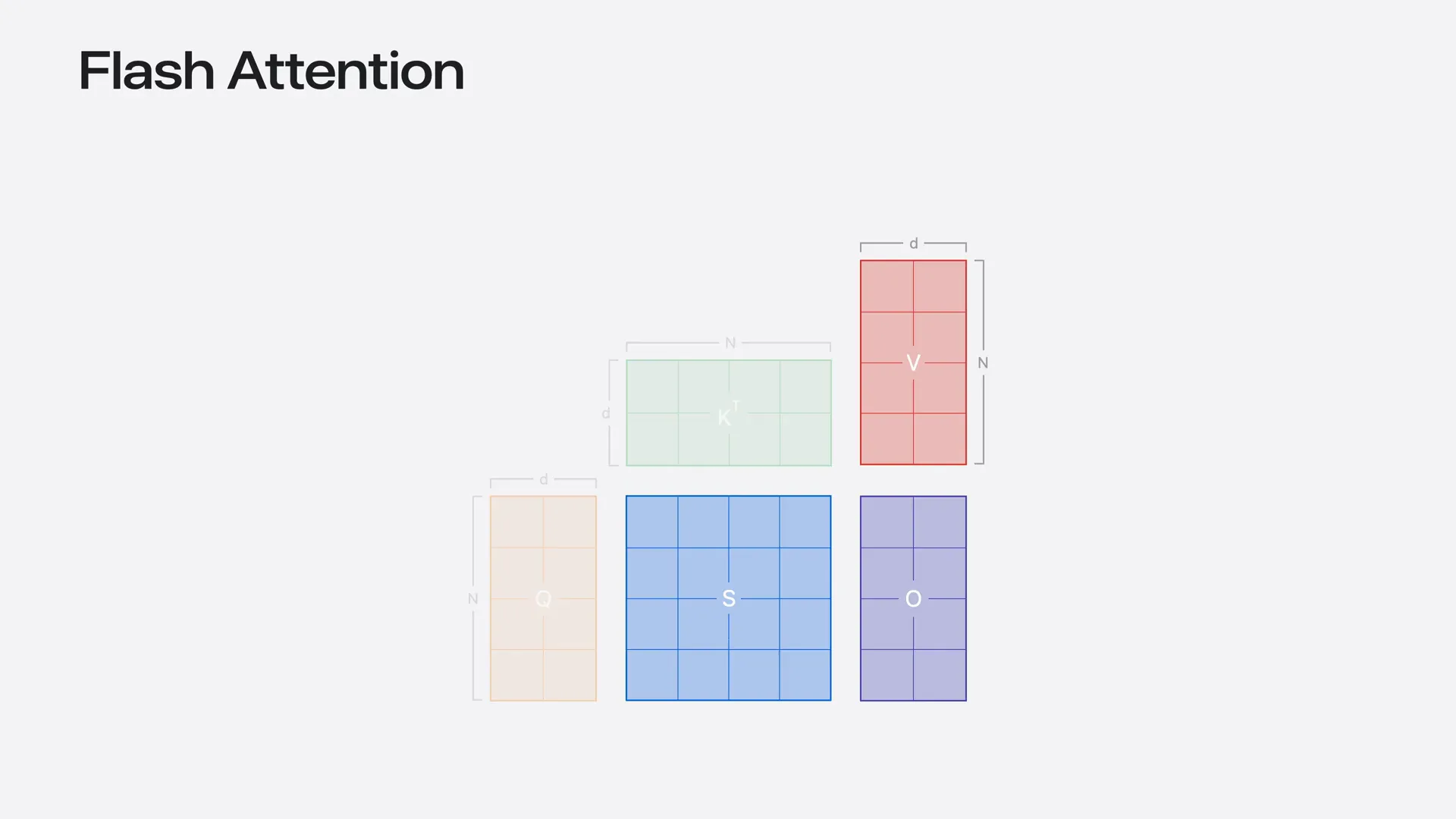 | Now we are ready to multiply this cooperative tensor by V. |
Slide 53 — 12:28 (watch)
 | In macOS 26, you must first store the tensor in thread group memory. However, it is now possible to use cooperative tensors directly as inputs for manual operations. |
Slide 54 — 12:50 (watch)
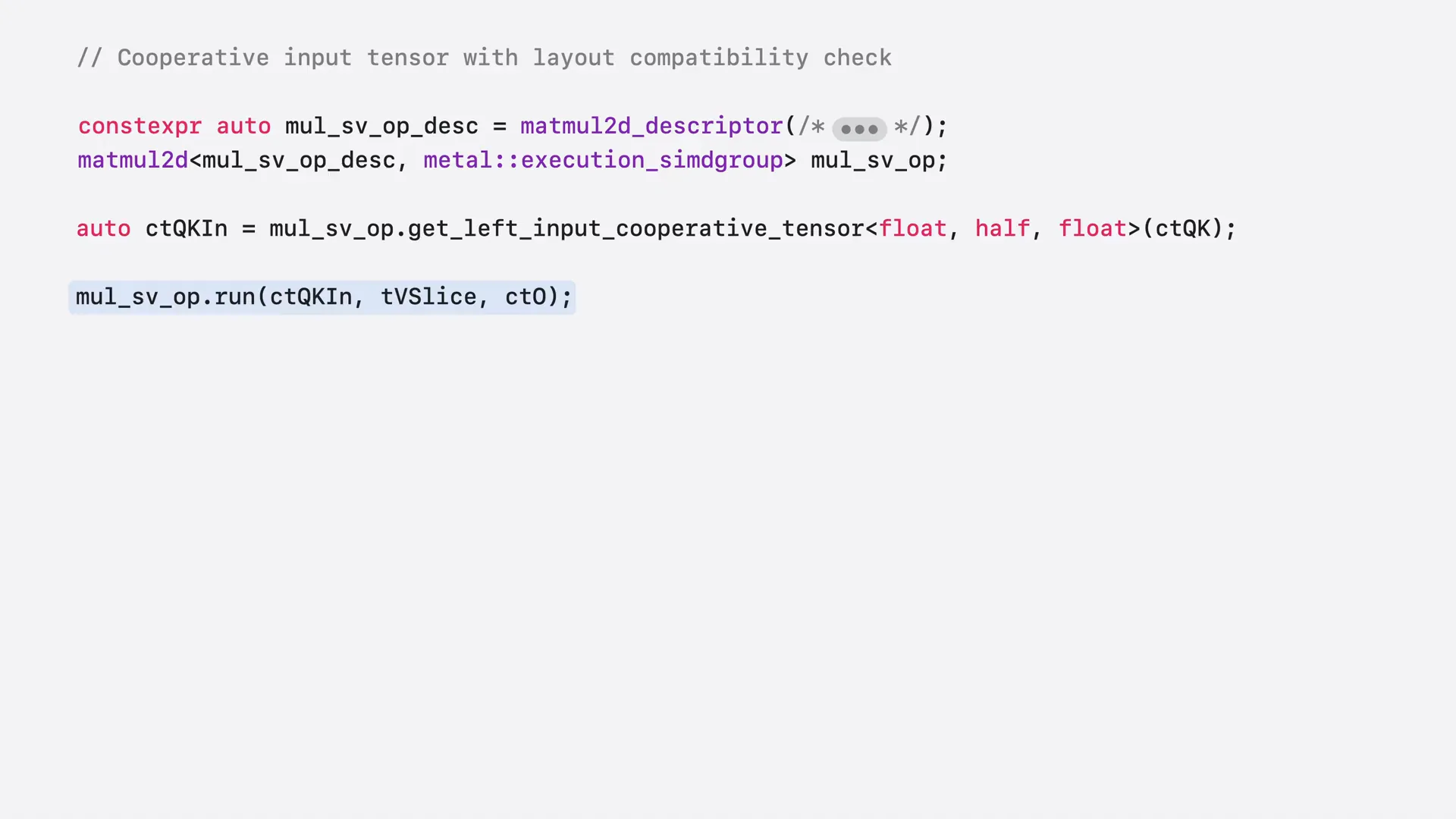 | To do this, call the getLeftInputCooperativeTensor method, passing the source cooperative tensor as an argument. You can then use the result as an input to the second manual operation. However, not every cooperative tensor can be reused as an input; the layouts may differ based on data types and other factors. Before proceeding, call the isCompatibleAsLeft or isCompatibleAsRightInput method to check for compatibility. If it returns true, you can continue. |
Slide 55 — 13:14 (watch)
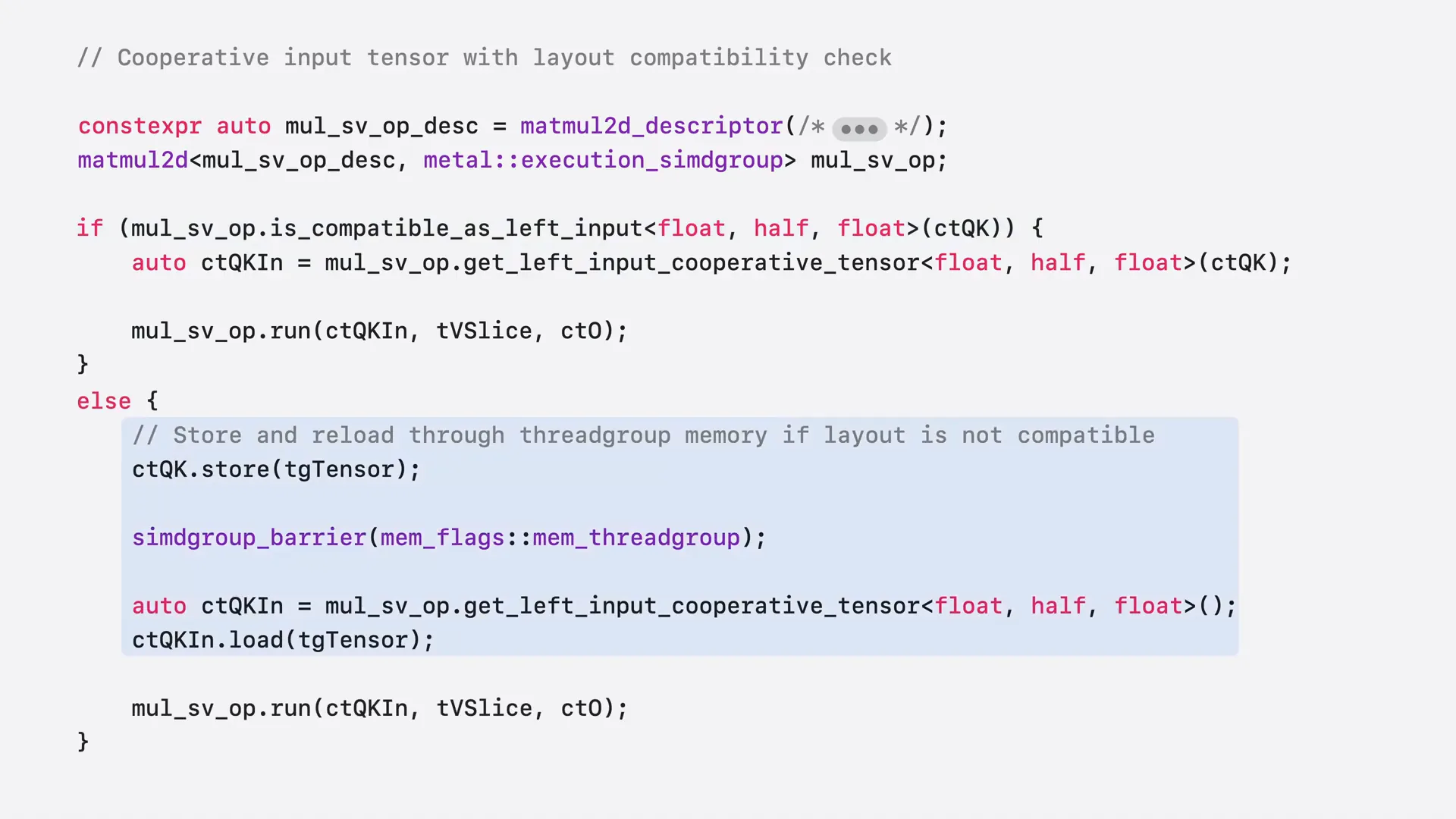 | If the compatibility check returns false, you will need to store and reload the data through thread group memory to convert it to the correct layout. Regardless of the situation, the call to op.run remains the same. |
Slide 56 — 13:22 (watch)
 | These are the key TensorOps features required to build an advanced operation like FlashAttention using TensorOps. |
Slide 57 — 13:30 (watch)
 | Now that we've discussed how to build this operation, let's examine its performance in a real model using Core AI. |
Slide 58 — 13:46 (watch)
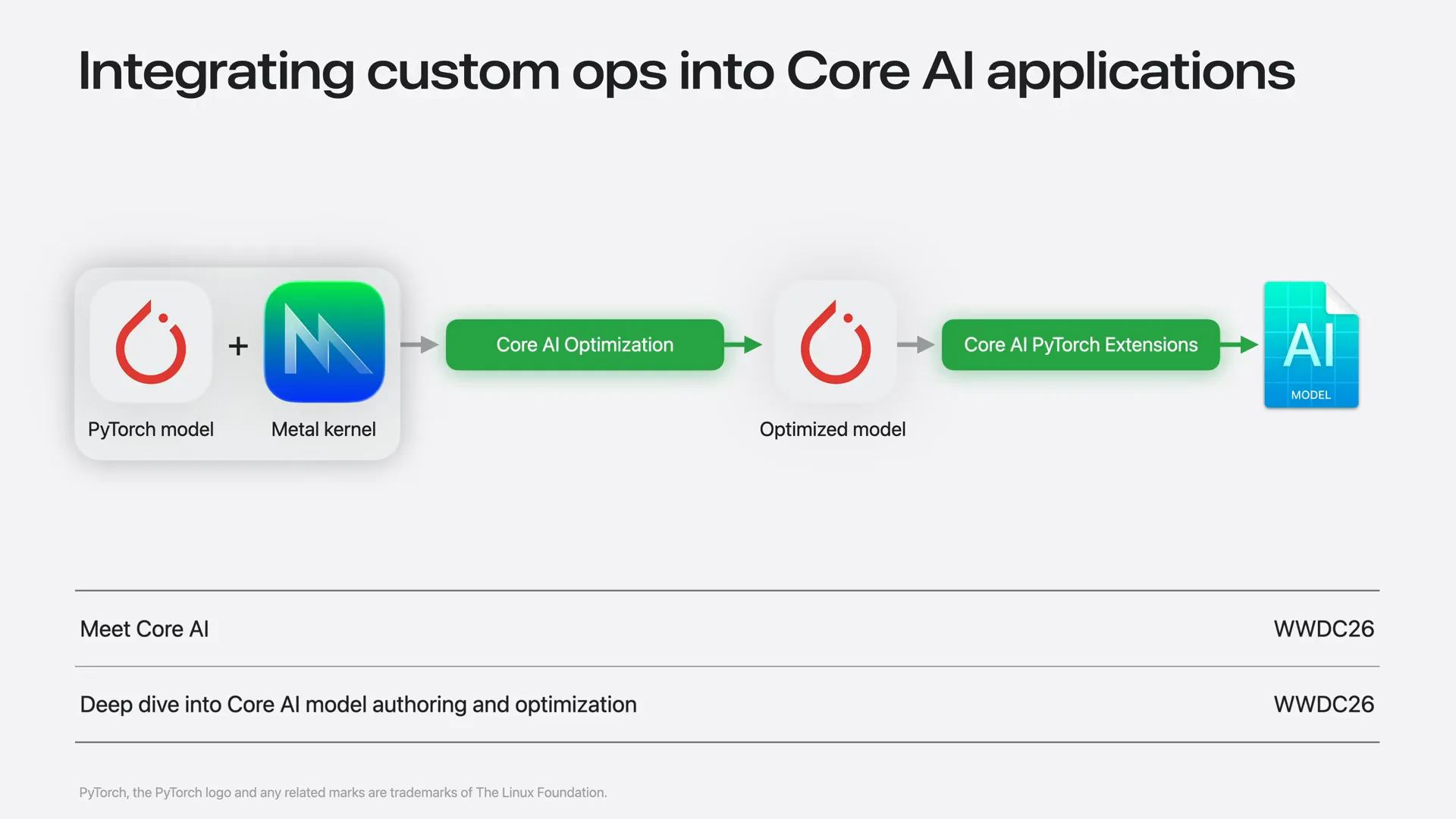 | Core AI provides tools for Python developers to convert PyTorch models into Core AI models, including support for custom meta kernels. For details on integrating a meta kernel into a Core AI model, refer to the Deep Dive into Core AI Model Authoring and Organization session. |
Slide 59 — 14:24 (watch)
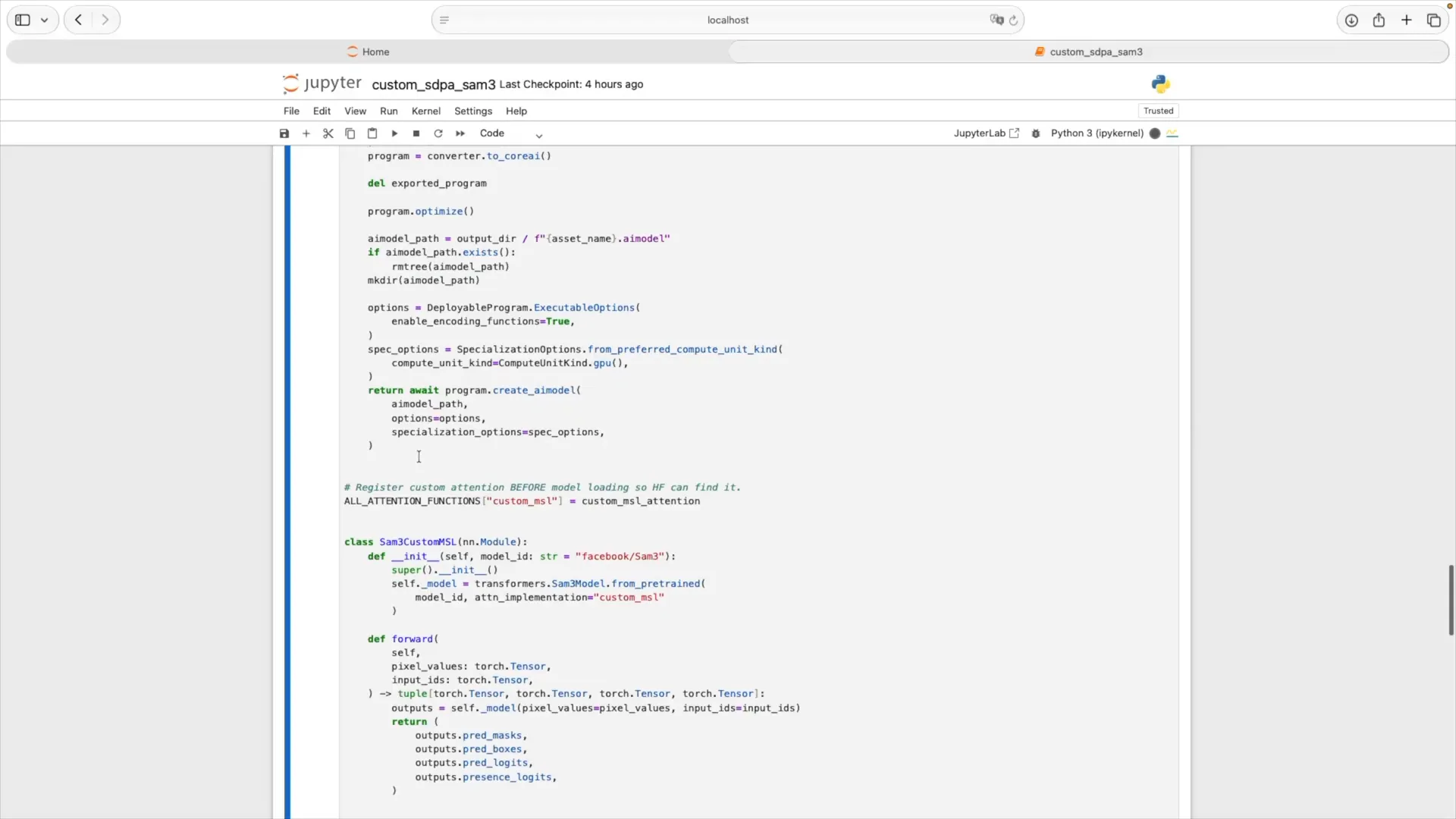 | I followed the steps outlined in that session to integrate our custom FlashAttention kernel into a SAM3 image segmentation model. We define the body of our custom attention kernel as a string in Python and register the TorchMetalKernel object. Then, we replace the default Hugging Face Attention implementation with one that calls our kernel. Finally, we load the model from Hugging Face and export it from PyTorch as an optimized Core AI asset. The export will take a moment to finish. Now we're ready for inference. SAM3 performs promptable concept segmentation, so we provide the model with an image and text, and it responds with a segmentation mask indicating where objects are located in the image. |
Slide 60 — 14:58 (watch)
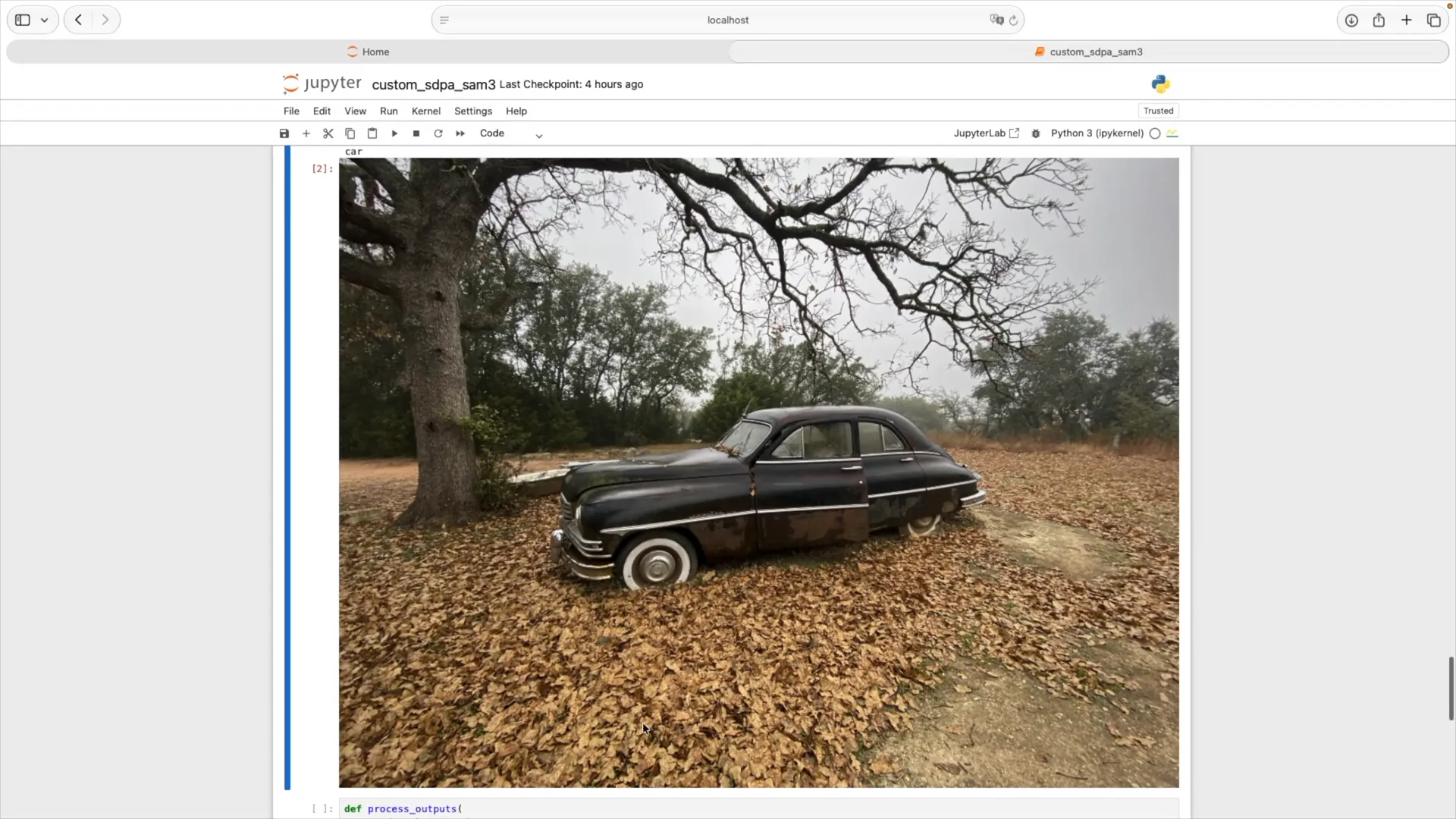 | Here, I am prompting the model to label all pixels that contain a car in the image. |
Slide 61 — 15:06 (watch)
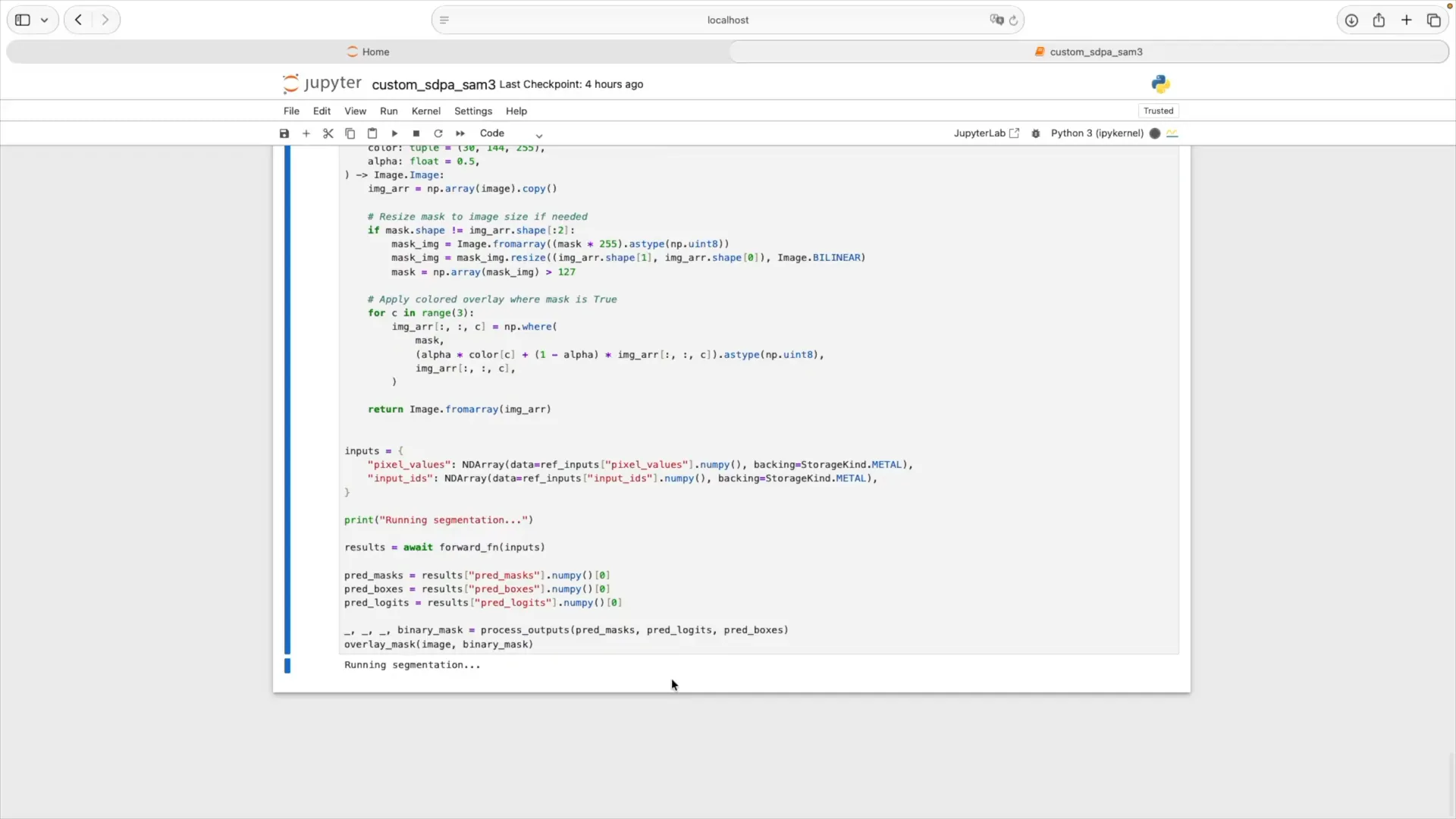 | Now, I will run the segmentation. |
Slide 62 — 15:18 (watch)
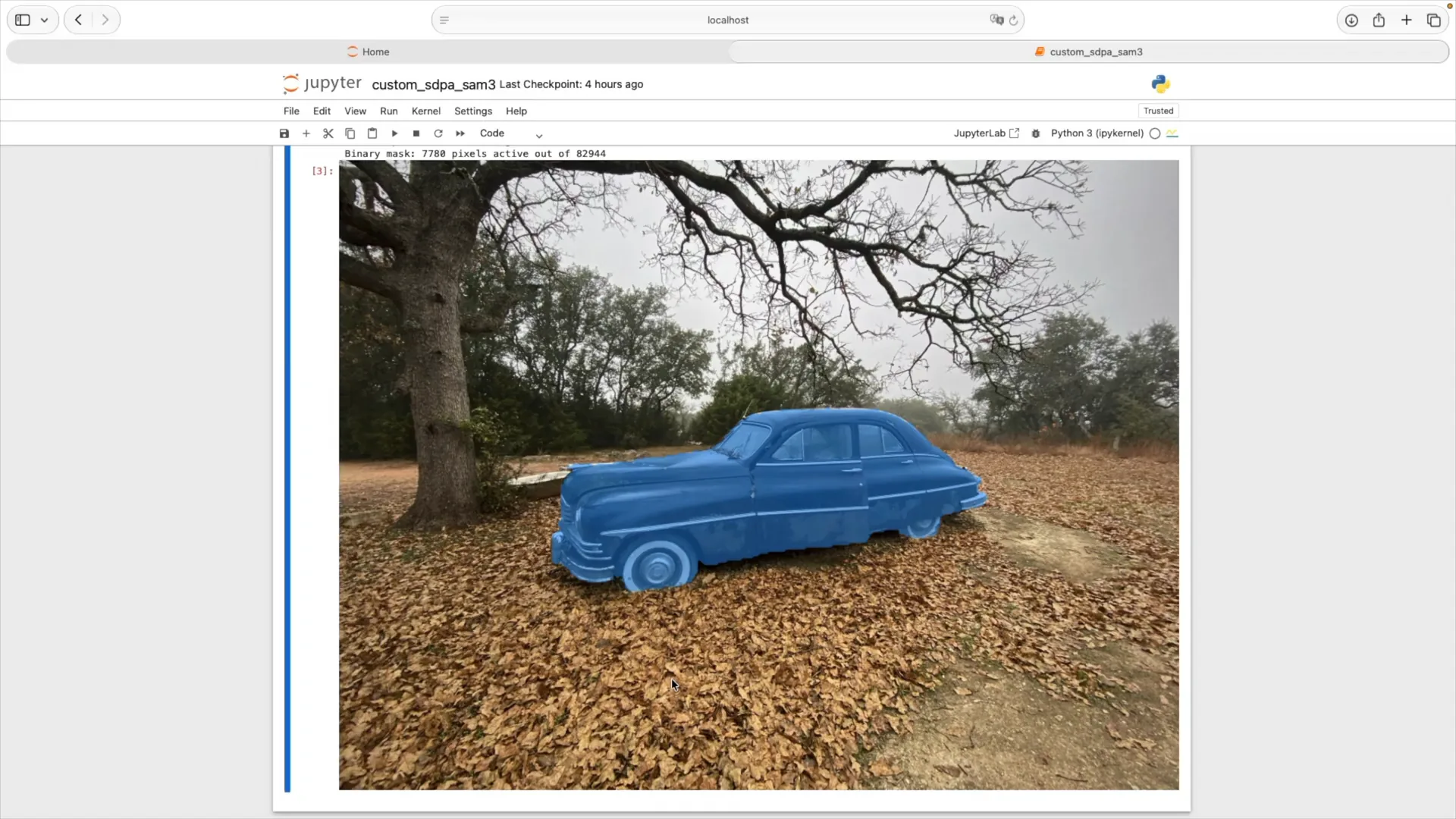 | The final result shows that the model correctly segmented the image, with the car highlighted in blue. This indicates that our attention kernel is fully integrated into the model as expected. |
Slide 63 — 15:32 (watch)
 | Today, I covered the tools available for building optimized custom ML kernels on Apple Silicon. This includes quantized data types, advanced TensorOps features such as cooperative tensors and reductions, and integration with Core AI. |
Slide 64 — 15:54 (watch)
 | To go further, explore the Metal Performance Primitives documentation for the full API reference and the programming guide for additional performance optimization guidelines. You can also download the TensorOps sample code to review details that I couldn't cover here. Additionally, check out the related sessions to learn more about Core AI and Metal. Thank you. |